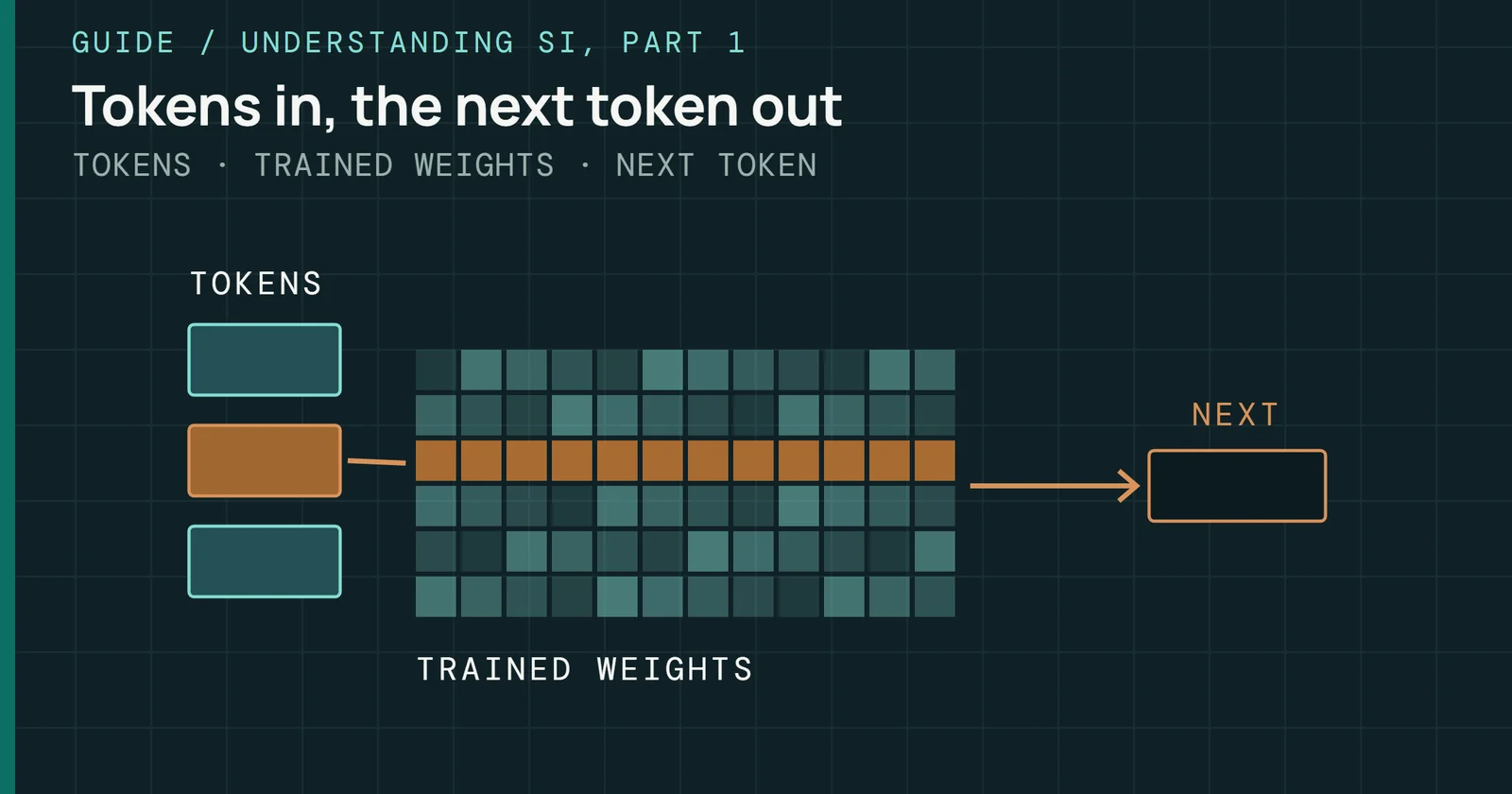
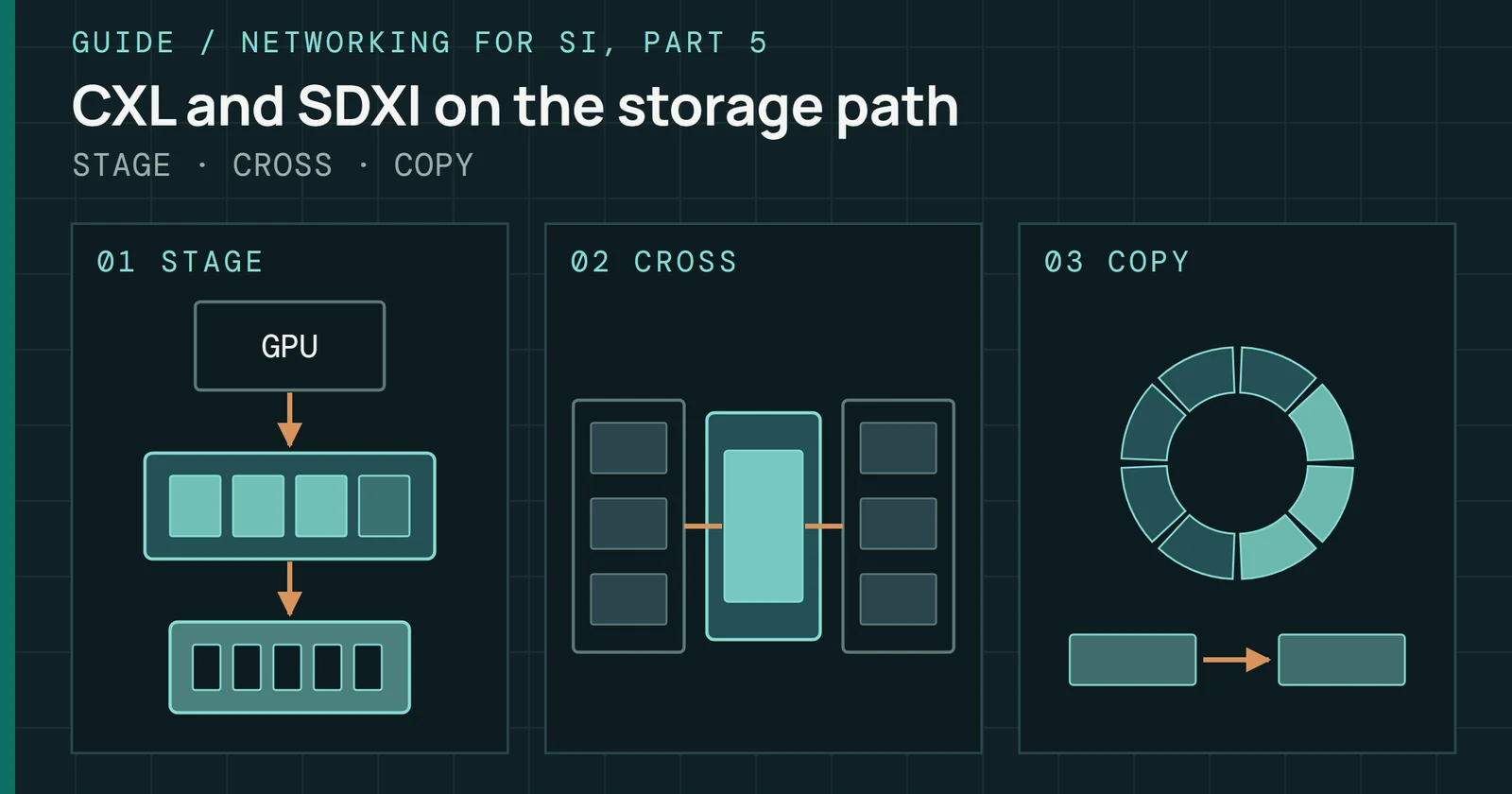
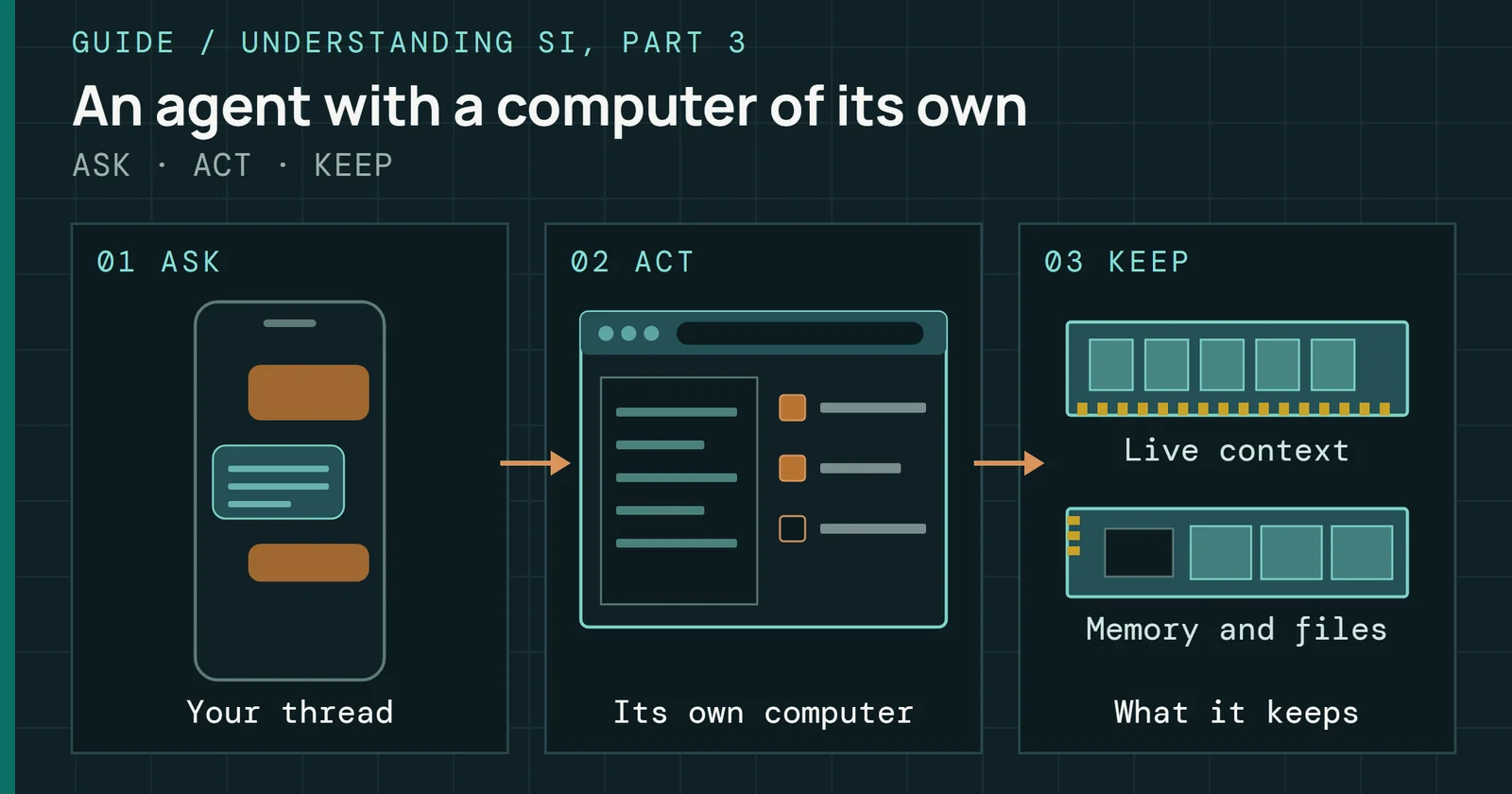
A language model on your own PC runs only as fast as the memory that holds it. A dense model reads every one of its weights again for each token it writes, which the guide to how SI knows anything explains from the ground up. On Windows that turns the question of which model you can run into three sizes to check. One is the file on the SSD, one is the graphics card’s own memory (VRAM), and one is the system RAM that catches whatever doesn’t fit.
Memory and Storage
Understanding SI, Part 2: Running Language Models Locally on Windows
How much VRAM, RAM, and disk a local language model needs on Windows, how quantization sets its size, and where Ollama, LM Studio, and WSL keep the files.
On this page 15 sections
I run Google’s Gemma 4 26B through Ollama on my RTX 4090, which NVIDIA rates at 24GB of memory. Ollama serves it as a 17GB download in the Q4_K_M build. With Ollama 0.33.3 loaded, nvidia-smi read 21.7GB in use on the card with a 64K-token context and 23.1GB with 128K, still entirely on the GPU. Those totals are nvidia-smi readings, so they sit above the 17GB download size. The SI agents guide covers why Ollama’s own estimate stays flat. I took one reading at each size. At 256K the model didn’t fit anymore. It spilled into system memory, and the whole PC lagged. Sizing a model before you download it means adding up the weights and the context and holding the total against the card.
What has to fit, and where
A model file holds the weights, and a runner copies them into memory before it writes a single token. If the PC has a graphics card, the runner puts as much of the model as it can in VRAM and leaves the rest in system memory. Ollama’s FAQ shows where a loaded model ended up in the PROCESSOR column of ollama ps. That column reads 100% GPU when the model sits entirely on the card and 100% CPU when it sits entirely in system memory. A model that straddles both shows a split such as 48%/52% CPU/GPU.
Weights are only part of what the card holds. Beside them the runner keeps the key-value (KV) cache, a record of every token in the conversation so far, and that record grows with the context length. Ollama’s context-length page says a larger context needs more memory. My Gemma 4 readings show how the total grows. With a 64K-token context the card held 21.7GB, which is 4.7GB more than the 17GB download, and doubling the context to 128K added another 1.4GB.
What has to fit, and where
A local model loads from the SSD and runs from the card’s memory
Block diagram, not to scale.
Everything the SSD holds is the teal file on the left. On the card, memory carries the weights and the KV cache together, and the dashed system RAM box fills only when the card runs out of room.
System RAM has two jobs in this picture. It holds whatever spills off the card, and on a PC with no supported graphics card it holds the whole model. LM Studio’s system requirements recommend at least 16GB of RAM and at least 4GB of dedicated VRAM. Between sessions the SSD keeps the file, and it feeds that file to memory when the model loads. Its speed shows up as load time, worked out per drive in the section on disk below.
Quantization sets the download size
A model’s download size is its parameter count times the bits stored for each weight. Quantization stores each weight in fewer bits, and llama.cpp’s quantize README says it shrinks the model’s size and can speed up inference. Type names you’ll see on download pages, such as Q4_K_M and Q8_0, come from llama.cpp. Its files use the GGUF format, which Hugging Face describes as a binary format optimized for quick loading and saving of models.
That README measures each type on Meta’s Llama 3.1 8B. The table converts its sizes from GiB to decimal GB, the unit this site uses.
| Type | Bits per weight | Size (GB) |
|---|---|---|
| F16 | 16.0 | 16.06 |
| Q8_0 | 8.50 | 8.54 |
| Q6_K | 6.56 | 6.59 |
| Q5_K_M | 5.70 | 5.72 |
| Q4_K_M | 4.89 | 4.92 |
| Q3_K_M | 4.00 | 4.02 |
| Q2_K | 3.16 | 3.17 |
Figures from the llama.cpp quantize README, Llama 3.1 8B table, with sizes converted from GiB to GB.
Quantization sets the download size
Q4_K_M cuts Llama 3.1 8B to under a third of its 16-bit size
Q8_0 comes to about half the 16-bit file, and Q4_K_M to just under a third of it. Below Q4_K_M each step saves less than a gigabyte on this model.
For a first pick, LM Studio’s download guide suggests a 4-bit option or higher when the machine can hold it. I’d treat Q4_K_M as the sensible first download on a card of 24GB or less. Q8_0 is worth the extra space only when the larger file still leaves room for the context you want. A 2- or 3-bit file is for a model that can’t fit any other way.
Some models arrive quantized from their maker. OpenAI released gpt-oss already quantized in MXFP4, and OpenAI rates its 20b model to run with 16GB of memory. Such a model comes in one type, so the choice is only between models.
Sizing a model to your card
Add the download size, the KV cache for the context you want, and some room for the runner, then hold the total against the card’s VRAM. On my 4090 the 17GB Gemma 4 file left 7GB of the card’s 24GB. At a 64K context the total ran 4.7GB past the download size, and at 128K nvidia-smi read 23.1GB in use on the card. That’s close to the full 24GB NVIDIA rates it for. I didn’t try a context between 128K and 256K, so the point where it stopped fitting sits somewhere in that range.
Sizing a model to your card
On my RTX 4090, a 128K context filled the card to 23.1GB
One reading per context size, Ollama 0.33.3.
Copper bars are what Ollama reported in use. Each sits to the right of the teal file size by the cost of its context, and the 128K bar stops just short of the card’s rated 24GB.
Set the context yourself
Ollama picks a default context from the VRAM it finds. Its context-length page lists 4K tokens below 24GiB of VRAM, 32K from 24GiB to 48GiB, and 256K at 48GiB or more. Ollama’s FAQ still gives 4,096 tokens as the default, so the safe course is to set the number yourself. Setting the OLLAMA_CONTEXT_LENGTH environment variable covers every model, /set parameter num_ctx sets it inside a chat, and num_ctx sets it per request.
Shrinking the cache itself is in the same FAQ. Setting OLLAMA_KV_CACHE_TYPE to q8_0 uses about half the memory of the default f16, and q4_0 about a quarter. Both need flash attention, which Ollama turns on automatically when the backend and devices support it.
Before a load, LM Studio’s command line can do the arithmetic. Running lms load with --estimate-only prints a memory estimate that accounts for the context length, flash attention, and vision support. Its --context-length option sets the context, and --gpu sets how much of the model goes to the card, from 0 to 1, or off or max.
What the library lists
Ollama’s library pages give the download size of each build. Every Llama 3.1 and gpt-oss build below lists a 128K context.
| Model | Ollama download | Maker’s memory figure |
|---|---|---|
| Llama 3.1 8B | 4.9GB | not published |
| gpt-oss-20b | 14GB | 16GB |
| Llama 3.1 70B | 43GB | not published |
| gpt-oss-120b | 65GB | 80GB, one GPU |
| Llama 3.1 405B | 243GB | not published |
Figures from the Ollama library pages for llama3.1 and gpt-oss and OpenAI’s gpt-oss announcement.
A 24GB card fits the 8B and 20B builds with room left for context. At 43GB, the 70B build is 1.8 times the 4090’s 24GB, so on that card most of it would sit in system RAM. OpenAI rates gpt-oss-120b to run within 80GB of memory, and that’s a floor for loading the model before any long context is added.
When the model doesn’t fit
Once the weights and the cache outgrow VRAM, the overflow goes to system memory by one of two routes. A runner can split the model itself, and Ollama’s FAQ shows that split in ollama ps as a CPU and GPU percentage. NVIDIA’s driver can also spill on its own. According to NVIDIA, from driver 536.40 apps can fall back to slower shared system memory when VRAM is nearly full. From driver 546.01 the fallback can be turned off per program in NVIDIA Control Panel, under Manage 3D settings and Program Settings, by setting CUDA - Sysmem Fallback Policy to Prefer No Sysmem Fallback.
Task Manager shows both pools on its GPU page. Microsoft’s DirectX team explains that dedicated memory on a discrete card is its VRAM. Shared memory is system memory the GPU can use, limited to half of physical memory at any given instant. If the shared memory figure climbs during a load, the model has started to spill.
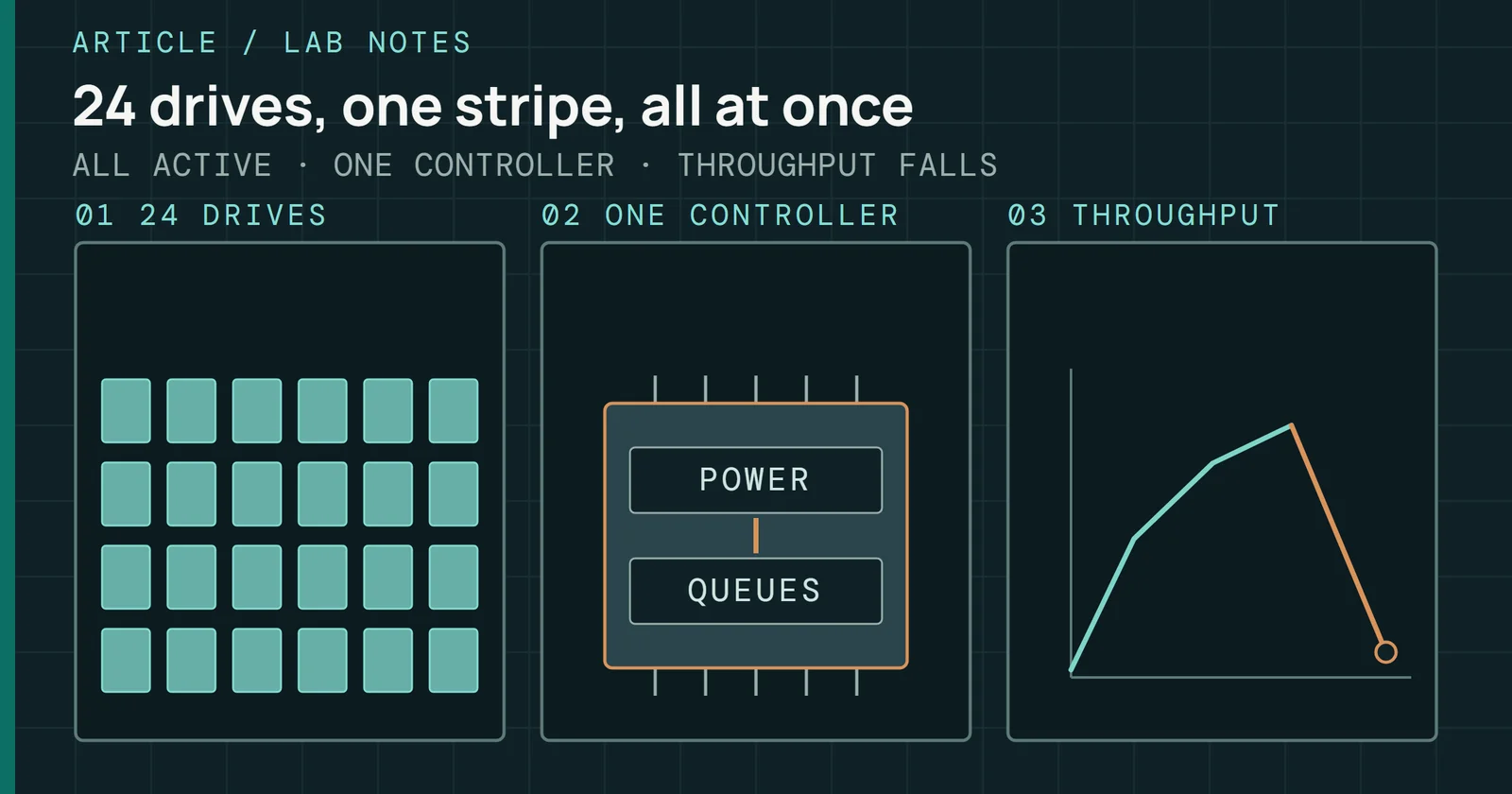
A spill costs bandwidth. NVIDIA’s Ada architecture whitepaper rates the 4090’s memory at 1,008GB/s. AMD rates its Ryzen 9 9950X3D for DDR5-5600 with two modules, and each DDR5 module carries two 32-bit subchannels, or 8 bytes per transfer, as Micron describes in its module-features paper and its DDR5 introduction. Two DDR5-5600 modules move 89.6GB/s at peak, less than a tenth of the card’s figure.
When the model doesn’t fit
At most about 205 tokens a second from the card, 18 from RAM
Upper limits for a dense model: each token reads the whole 4.92GB file once.
Each panel divides one memory’s peak rate by the same 4.92GB Q4_K_M file of Llama 3.1 8B. Llama 3.1 is a dense model, so each token reads every weight once, and the result is an upper limit on speed. That limit is about 205 tokens per second from the 4090’s memory and about 18 from two DDR5-5600 modules. A real run comes in under both, because the cache, the math, and the runner take their own time. The AI agents guide lists speeds I measured on this card for a range of models at one context length, in its section on what a long context costs.
A split pays the slower rate on the part that spilled. Picture half of that 8B model’s layers in system RAM. Read at 1,008GB/s on the card and at 89.6GB/s from RAM, the RAM half ends up with about 92% of each token’s time. Moving only half the model makes each token about six times slower than keeping the whole file on the card.
I ran that case on this PC. Ollama 0.33.3 ran the same Llama 3.1 8B Q4_K_M file with a 4,096-token context and 256 generated tokens, and I took the median of three runs after a warm-up. With every layer on the card it wrote 77.6 tokens per second, about 38% of the 205 limit. With 16 of the model’s 33 layers on the card and the rest in system RAM, it wrote 17.3, which is 4.5 times slower where the arithmetic said six. The limits hold as ceilings, and the runner lands well under them.
For a model that spills, the better fix is usually a smaller quantization or a shorter context, which keeps everything on the card. A split is worth it when the larger model is the only one that answers well enough for the job and the slower speed is acceptable.
Picking a runner
Three runners install natively on Windows and handle the downloading, loading, and memory split for you. They differ mostly in what they ask of the PC.
| Runner | Windows needs | Graphics and accelerators | How you use it |
|---|---|---|---|
| Ollama | Windows 10 22H2 or newer | NVIDIA driver 551.61 or newer, AMD on ROCm or Vulkan | ollama command line |
| LM Studio | x64 with AVX2, or Arm on Snapdragon X Elite | 4GB of dedicated VRAM recommended | Desktop app and lms command line |
| Foundry Local | Windows 11 24H2 or later, x64 or Arm64 | NVIDIA through CUDA, Snapdragon NPU, or CPU | foundry command line, installed with winget |
Requirements come from the Ollama Windows and GPU documentation, the LM Studio system requirements, and Microsoft’s Foundry Local get-started guide.
Ollama’s Windows page says the installer doesn’t need administrator rights and puts everything in your home directory, with at least 4GB of space for the program itself. That page asks for NVIDIA driver 551.61 or newer, while Ollama’s GPU page gives 550 or newer and 570 for older cards of compute capability 5.0 to 6.2. Any current driver clears all three. AMD cards run on ROCm when they’re on Ollama’s list. That list covers the Radeon RX 7900 XTX, 7900 XT, 7900 GRE, 7800 XT, 7700 XT, 7600 XT, and 7600, and the Radeon PRO W7900 through W7500. RDNA2 cards fall back to Vulkan instead, and the GPU page notes that most GPU vendors’ drivers on Windows come bundled with Vulkan support.
Requirements for LM Studio cover x64 PCs and Arm laptops on Snapdragon X Elite. An x64 processor needs Advanced Vector Extensions 2 (AVX2), so a CPU without it can’t run the app. It browses and downloads models itself and shows them under My Models, and its lms command line adds the memory estimate described above.
Microsoft’s Foundry Local installs with winget install Microsoft.FoundryLocal and needs Windows 11 24H2 or later. It picks a build of each model for the hardware it finds. A Snapdragon PC gets a build for the neural processing unit (NPU), an NVIDIA card gets a CUDA build, and anything else gets a CPU build.
Picking a runner
The graphics hardware picks the runner, and Linux tools use WSL2
This tree starts from the graphics hardware because that decides which builds run fast. Every branch ends on a runner that supports that hardware on Windows, and a tool that runs only on Linux takes the WSL2 route in the band at the bottom.
With an NVIDIA card or a Radeon RX 7000 card, this guide’s pick is Ollama for a plain command line and a local server. LM Studio is the better choice for browsing models and seeing an estimate before each load. Foundry Local is the one to try first on a Snapdragon laptop, where it picks the NPU build on its own.
Where the models live on disk
Model files are large, and each runner keeps them in its own folder on the C: drive unless you move them. Ollama’s Windows page warns that models can be tens to hundreds of GB in size, which is why the default location matters on a small boot drive.
Where the models live on disk
Every runner keeps its models on the C: drive until you move them
Each folder in the drawing belongs to one tool, and each tool has its own way to move it. Only the WSL disk is a single file, and it holds a whole Linux file system.
Moving each folder
Ollama keeps models and settings in %HOMEPATH%\.ollama, with the models under C:\Users\%username%\.ollama\models. To move them, set OLLAMA_MODELS as a user environment variable pointing at the new folder, then quit and restart Ollama. Running the installer with /DIR, as in OllamaSetup.exe /DIR="d:\some\location", moves the program but not the models. If you moved the models, the uninstaller leaves them in place.
In LM Studio, the download guide says the models directory can be changed from the My Models tab.
Tools built on Python and Hugging Face’s libraries keep downloads in a cache. Hugging Face’s cache guide puts it at ~/.cache/huggingface/hub, which on Windows is under your user folder, and it moves with the HF_HOME or HF_HUB_CACHE variable. On Windows without symlink support, the cache may store a file more than once. Its fix is to turn on Developer Mode or run Python as an administrator. To see and clear what’s there, use the hf cache ls, hf cache rm, and hf cache prune commands.
What the drive changes
A drive sets how long a cold load takes. This table divides the 17GB Gemma 4 file by each drive’s rated sequential read.
| Drive | Interface | Rated sequential read | 17GB at that rate |
|---|---|---|---|
| Samsung 990 PRO | PCIe 4.0 x4 NVMe | up to 7,450MB/s | about 2.3s |
| Samsung 870 EVO | SATA | up to 560MB/s | about 30s |
| Seagate BarraCuda 8TB | HDD | 190MB/s maximum sustained | about 89s |
Rates come from the Samsung 990 PRO data sheet revision 2.0, the Samsung 870 EVO 1TB product page, and Seagate’s BarraCuda data sheet DS2131.1-2302. Each load time is the 17GB file divided by the rated read.
These are best cases at the rated speed. Samsung’s 990 PRO data sheet gives its read as up to 7,450MB/s, and a real load adds the copy into memory on top. Seagate’s BarraCuda takes about a minute and a half for each cold load of that file. That suits an archive of models you rarely run. The Samsung 870 EVO on SATA sits in between.
Downloads barely wear an SSD. Pulling the 65GB gpt-oss-120b build ten times writes 650GB, about 0.1% of the 600TB Samsung rates the 1TB 990 PRO to write within its five-year warranty. An endurance ranking compares that figure across drives per terabyte.
WSL2 when a tool needs Linux
Some tools run only on Linux. Windows Subsystem for Linux (WSL) runs them in a virtual machine (VM) that shares the PC’s memory, disk, and graphics card with Windows. Each of those comes with a default worth checking before you load a model inside it.
Memory comes first. Microsoft’s WSL settings page gives the VM 50% of total memory on Windows by default. It adds a swap file of 25% of the memory size on Windows, rounded up to the nearest GB, at %Temp%\swap.vhdx. Settings live in %UserProfile%\.wslconfig, and they take effect once WSL has stopped, about 8 seconds after the last shell closes. Say your PC has 64GB of RAM and you want to give a model inside WSL more room and stop it from swapping to disk. Put the two lines below in .wslconfig to cap the VM at 48GB and turn the swap file off:
[wsl2]
memory=48GB
swap=0
WSL2 when a tool needs Linux
By default WSL2 gets half the PC’s memory and a disk of up to 1TB
Defaults from Microsoft’s WSL settings, changed in .wslconfig.
Both the VM’s share of RAM and its swap file come out of the same Windows memory and disk the rest of the PC uses. Inside the VM, the graphics card is reached through the Windows driver, so there’s no Linux GPU driver in the box.
The graphics card inside WSL
NVIDIA’s CUDA on WSL guide says the Windows driver is the only driver you need, and that no Linux display driver should be installed in WSL. Inside WSL, install the CUDA toolkit on its own, not the cuda or cuda-drivers packages that would replace the driver library WSL provides. Its list of limits includes restricted pinned memory and reduced performance with managed memory.
AMD cards take a different route. AMD’s ROCm guide for Radeon in WSL supports ROCm there through ROCDXG, an open-source user-mode library that carries ROCm’s compute calls to the Windows graphics driver. The supported distros there are Ubuntu 24.04 and 22.04. Check your card against the compatibility matrix linked from that guide before you plan around it.
Where WSL keeps its files
Each Linux distribution lives in an ext4.vhdx file under %LOCALAPPDATA%\Packages, and Microsoft’s disk space page says that disk grows as needed up to 1TB by default. Anything pulled inside WSL therefore ends up in that file on the C: drive, whatever OLLAMA_MODELS says on the Windows side. Microsoft warns against touching those files with Windows tools. On WSL 2.5 and later, wsl --manage <distro> --resize changes the size limit, and the page notes that reducing it is much more complicated than raising it.
Keep a model inside the Linux file system when a Linux tool loads it. Microsoft’s file systems page recommends the WSL file system for the fastest performance when you work from a Linux command line. Reaching across to a Windows drive is the slower path.
Ubuntu and macOS
The file, the memory that holds it, and the context still decide what runs on either system, and the install paths, model folders, and graphics support vary.
On Ubuntu and other Linux distributions, Ollama’s Linux page installs with a script, and an AMD card needs an additional ROCm package extracted beside the main one. Ollama’s FAQ puts the models in /usr/share/ollama/.ollama/models, and OLLAMA_MODELS moves them, as it does on Windows.
On a Mac, Ollama’s macOS page requires macOS Sonoma 14 or newer and keeps its models in ~/.ollama/models. Apple M series chips get CPU and GPU support, and Intel Macs get CPU only.
Ubuntu and macOS
Ollama keeps its models in a different folder on each system
What to watch
Mixture-of-experts (MoE) models change the sizing rule. OpenAI’s gpt-oss has 117B parameters in its 120b model and 21B in its 20b, but only 5.1B and 3.6B of them are active for each token. Every parameter has to sit in memory, so capacity follows the total. Each token reads only the active ones, so speed follows the much smaller count.
What to watch
gpt-oss-120b holds 117B parameters but reads 5.1B per token
That gap shifts the spill arithmetic from the section above. A dense model that spills pays the RAM rate on every byte of its spilled layers, while an MoE model pays it only on the experts each token uses. I haven’t measured an MoE model on this PC, so I only expect that to make large MoE models the ones worth trying on PCs with plenty of DDR5 and a modest card. The thread to follow is how runners decide which parts of an MoE model stay on the card. Microsoft has already brought gpt-oss-20b to Windows through Foundry Local and the AI Toolkit for VS Code.
For the memory itself, see DDR5 for Builders. KV caches at data-center scale are covered in context memory, and where each tier sits is in the memory and storage hierarchy.
Sources
Primary is the original paper, standard or datasheet. Secondary is a review, a vendor summary or a news report. Measured is my own test data.
Show all 34 sources, 33 primary
- PrimaryGPUs in the task managerDirectX Developer Blog, 2017
- PrimaryMicron DDR5: Client Module Features (white paper, Rev. A)Micron, 2021
- PrimaryThe Llama 3 Herd of Models (Llama Team, Meta)arXiv 2407.21783, 2024open copy
- Primary870 EVO SATA 2.5 inch 1TB SSDSamsung US
- PrimaryAdvanced settings configuration in WSLlearn.microsoft.com
- PrimaryAMD Ryzen 9 9950X3D Gaming and Content Creation ProcessorAMD
- PrimaryBarraCuda 3.5-inch data sheet DS2131.1-2302web.archive.org
- PrimaryCUDA on WSL User Guide — CUDA on WSL 13.4 documentationdocs.nvidia.com
- PrimaryFAQOllama
- PrimaryGet started with Foundry Locallearn.microsoft.com
- PrimaryGGUF · Hugging Facehuggingface.co
- PrimaryHow to manage WSL disk spacelearn.microsoft.com
- PrimaryIntroducing gpt-ossOpenAI
- PrimaryIntroducing Micron DDR5 SDRAM: More Than a Generational Update (white paper)Micron Technology
- PrimaryLinuxOllama
- Primaryllama.cpp quantize READMEGitHub
- PrimaryLM Studio system requirementsLM Studio Docs
- PrimaryLM Studio: download an LLMLM Studio Docs
- PrimaryLM Studio: lms loadLM Studio Docs
- PrimarymacOSOllama
- PrimaryNVIDIA Ada GPU architecture whitepaperimages.nvidia.com
- PrimaryNVIDIA GeForce RTX 4090 Graphics CardsNVIDIA
- PrimaryOllama context lengthOllama
- PrimaryOllama FAQOllama
- PrimaryOllama for WindowsOllama
- PrimaryOllama hardware supportOllama
- PrimaryOllama library: gpt-ossollama.com
- PrimaryOllama library: llama3.1ollama.com
- PrimarySamsung 990 PRO data sheet, revision 2.0download.semiconductor.samsung.com
- PrimarySystem memory fallback for Stable Diffusion (NVIDIA support)web.archive.org
- PrimaryUnderstand caching · Hugging Facehuggingface.co
- PrimaryWorking across file systemslearn.microsoft.com
- PrimaryWSL How to guide - Use ROCm on Radeon — Use ROCm on Radeon and Ryzenrocm.docs.amd.com
- MeasuredThe author’s own measurements