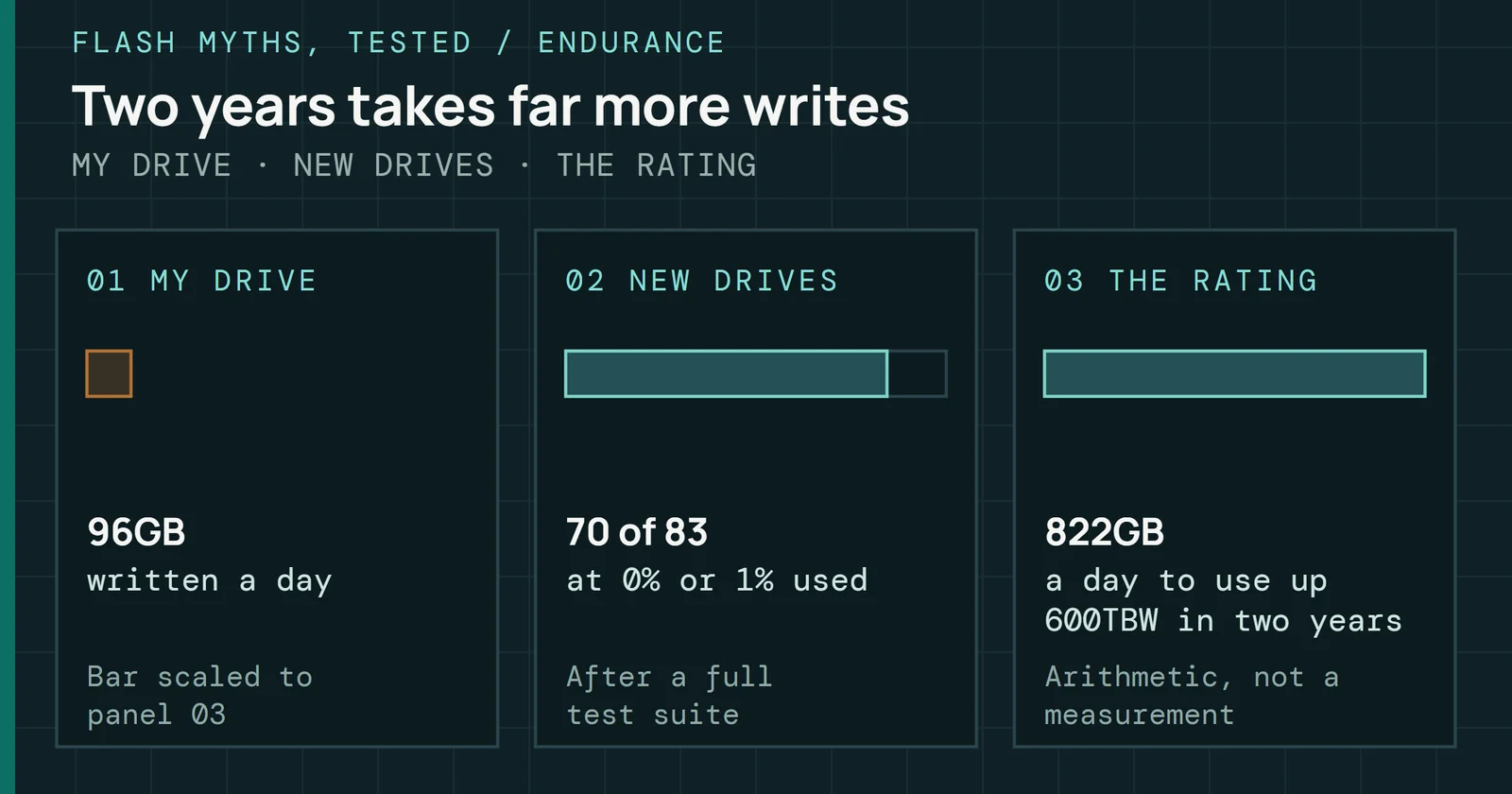
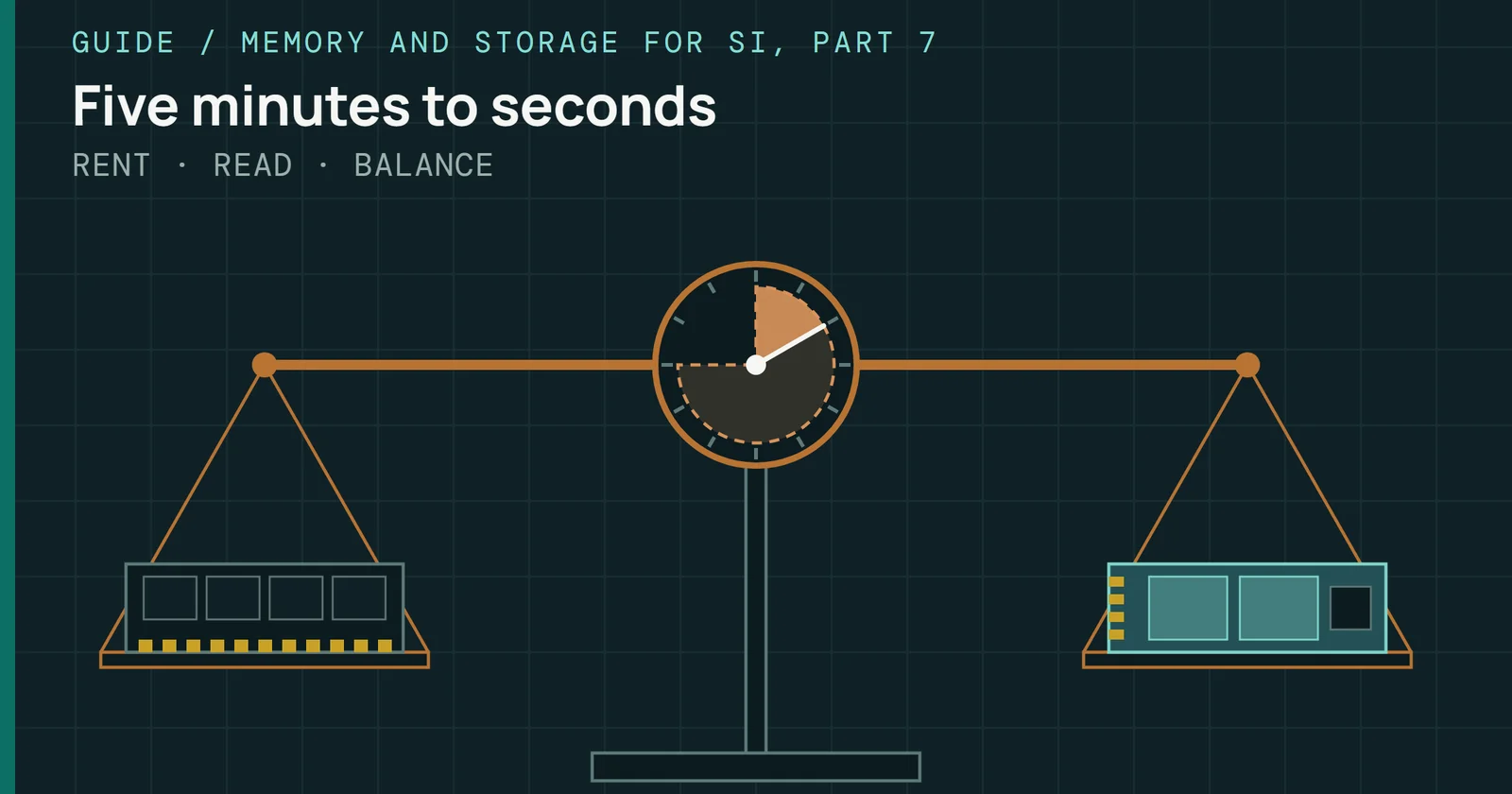
Microsoft’s own answer to “should the pagefile go on an SSD?” is yes, and its reasoning rests on the pattern of the operations, which are small random reads and larger sequential writes that SSDs handle well. Microsoft’s telemetry also found reads outnumbering writes about 40 to 1. Wear fails as a worry on arithmetic too, because even 100GB of writes every day, all of it pagefile, would take about 16 years to use up a 600TBW rating.
This myth belongs to the endurance group of Flash Myths, Tested, next to An unplugged SSD loses its data in weeks and When an SSD fails, it fails with no warning. This one asks what a file that Windows keeps on the drive does to its wear.
Where the myth comes from
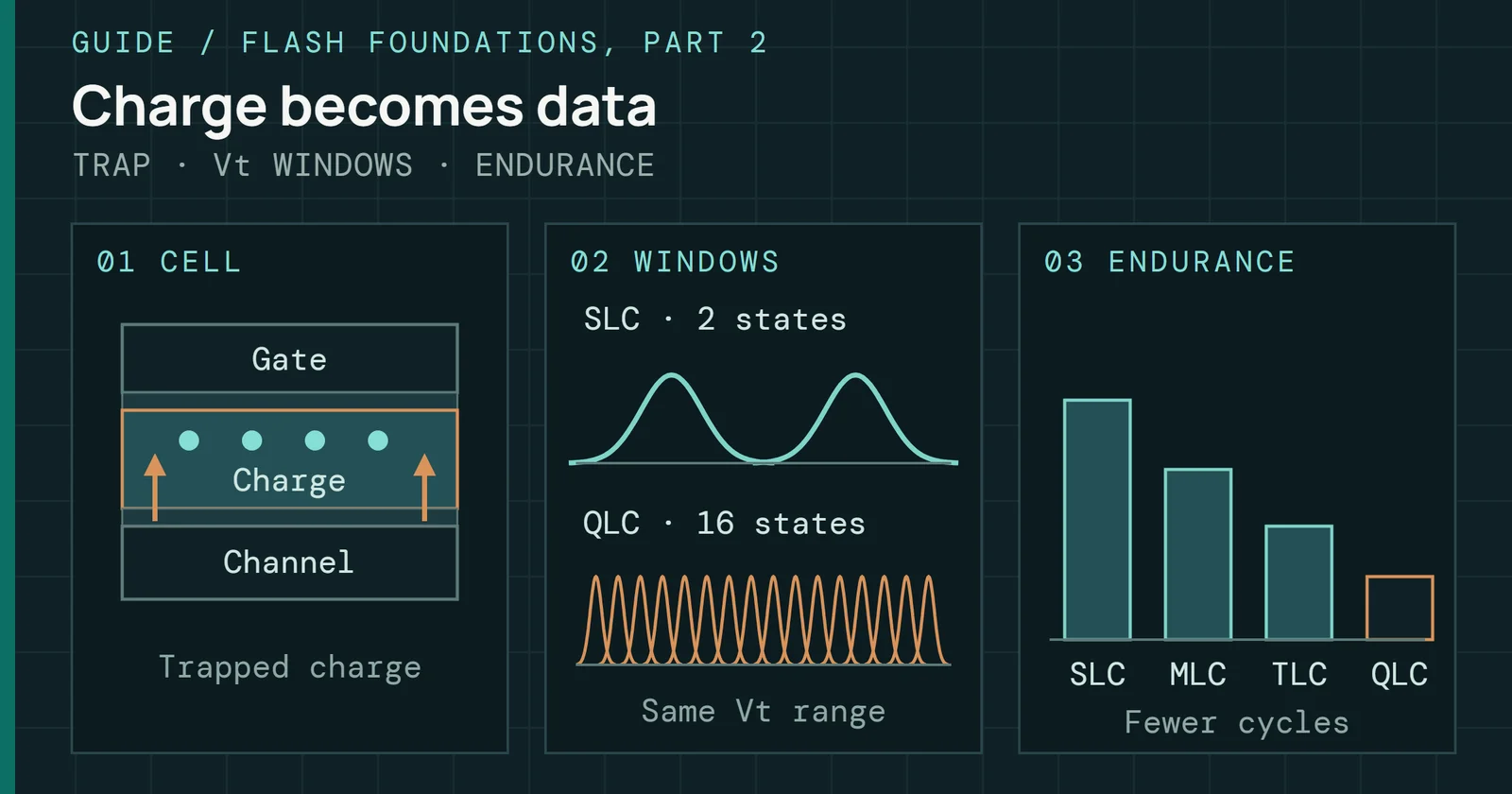
Flash cells wear out as they are written, and the page file sounds like a heavy writer, since Windows can fill it whenever memory runs short. Flash Foundations Part 9 explains how an endurance rating is built from that wear.
Where the myth comes from
The worry assumes the page file is written all the time
From flash wear to the claim the sections below test
The worry runs as a chain, and the myth fails on the assumption that the page file is written all the time. To test that, I take the file apart using Microsoft’s documentation and Microsoft’s own telemetry. I haven’t measured paging on a current Windows machine, so where a source is old I say so.
What the page file holds
Microsoft’s documentation treats the page file as a physical extension of RAM. It lets Windows move infrequently accessed modified pages out of memory so the memory can serve the pages in frequent use, and it also backs system crash dumps. A system’s commit limit is physical memory plus all page files, and if the commit charge reaches that limit, programs can fail to get memory.
What the page file holds
Only modified data with no copy on disk can go to the page file
Microsoft Learn on what Windows can back with the page file
Only modified data that does not already exist on disk, such as unsaved text, can be backed by the page file. That is the rule that matters for wear. Files that already sit on disk, such as .exe, .dll and .doc files, are never written to it.
By default the file is system managed. It grows when the commit charge reaches 90% of the commit limit, up to three times RAM or 4GB, whichever is larger, and never beyond one-eighth of the volume. Its minimum depends on usage history, RAM divided by eight (up to 32GB) and the crash dump settings. With Automatic memory dump, a second crash within four weeks raises the file to RAM size or 32GB, whichever is smaller.
How Windows uses it
In 2009 the Windows 7 engineering team looked at telemetry from thousands of traces and published what it found about pagefile.sys. Reads outnumbered writes about 40 to 1. Of the reads, 67% were 4KB or smaller and 88% were under 16KB. Writes were large, with 62% at 128KB or more and 45% exactly 1MB.
How Windows uses it
Page file reads are small, and its writes are large
Share of pagefile.sys reads and writes in each size class, Windows 7 telemetry
Small random reads and large sequential writes are both things an SSD handles well, and given those patterns the team answered yes to putting the pagefile on an SSD. In its words there are few files better to place there.
That telemetry comes from Windows 7 and the drives of that time, so it gives the shape of the traffic and says nothing about today’s volumes. By operation count that is about one write for every 40 reads, though large writes make the byte count a separate question.
What it costs in wear
Part 9 describes how a TBW rating is built, and the rating is the number to compare your own host writes with. Samsung rates the 1TB 870 EVO at 600TBW.
What it costs in wear
A 600TBW rating outlasts even heavy daily writes
Years to reach 600TBW at a steady daily write volume
Figure 4 is arithmetic and measures no PC. A 600TBW rating lasts about 16.4 years at 100GB of host writes a day. At 25GB a day it lasts about 65.8 years, and at 400GB a day, about 4.1 years. A PC’s total writes include far more than the page file, so a pagefile that took the whole 100GB would be a deliberately heavy case. Windows 7 telemetry counts operations rather than bytes, so it can’t give the daily volume either. It gives the shape of the traffic, and the arithmetic gives the room the rating leaves.
I don’t have a measurement of how much a current client PC’s page file is written in a day, only of what a whole drive takes. My own system drive is a 4TB NVMe SSD that I use every day. A single smartctl reading from 2026-10-07 shows 42.9TB of host writes (data units written times 512,000 bytes) over 10,726 power-on hours, about 96GB a day across everything on the drive, and it reports 1% of its rated life used. That counts every write on the drive, whatever file it went to, and it comes from one machine, so treat it as a single data point. Your own drive’s SMART host-writes count gives you the same figure for your machine. Do SSDs Wear Out in a Couple of Years? works through the same drive in more detail.
The other Windows tweaks people attach to it
Advice against the page file often lists a few more things to turn off. Here is what Microsoft’s documents say about each.
Hibernation comes first. The file behind it, hiberfil.sys, is written and read sequentially in large chunks, and Microsoft saw no concern about placing it on an SSD. At install it is reserved at roughly the size of installed RAM, and powercfg can set its size as a percentage of memory. A reduced file supports only fast startup, and a HiberFileSizePercent setting of 40 or more counts as a full file. Turning hibernation off also turns off hybrid sleep, and data can be lost on a power cut while hybrid sleep is set.
Windows Search does one full crawl, pausing during heavy disk use and user activity. After that, NTFS locations are kept current through change notifications instead of repeated crawls. As a rule of thumb, the index is under 10% of the size of the files it covers, though it runs larger with many files under 4KB or with code.
For prefetching, the Windows 7 team turned Superfetch, ReadyBoost and boot and launch prefetching off by default on SSDs with good random read, random write and flush performance. It left them on for early SSDs with severe random-write and flush problems, because turning them off made those systems slower. I didn’t find a Microsoft source on how current Windows handles this, so I won’t say what it does today. Figure 5 sets the three tweaks side by side.
The other Windows tweaks people attach to it
Three more tweaks, and no source measures their writes
What Microsoft's documents say about hibernation, indexing and prefetching
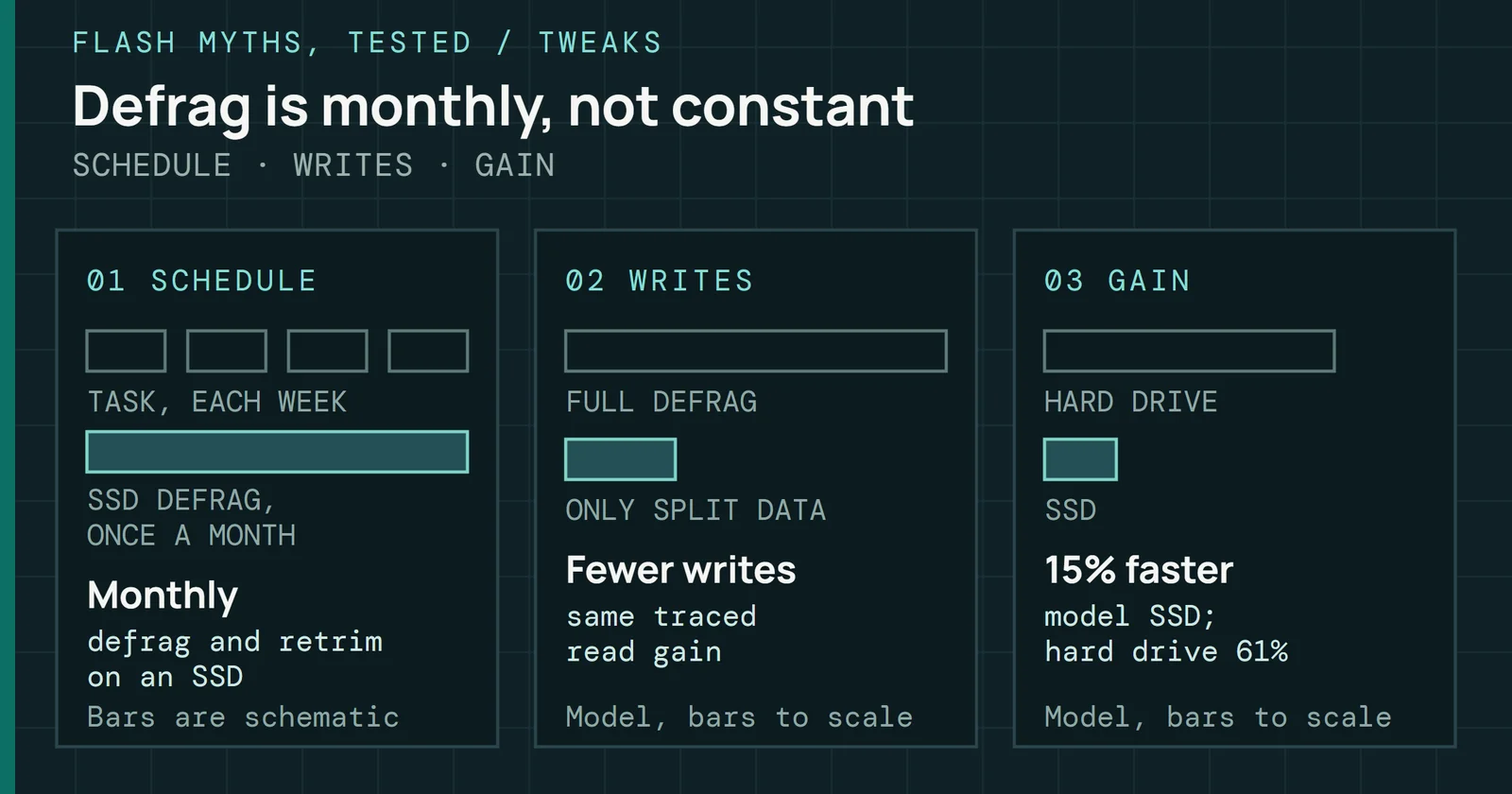
None of these sources measures how much any of the three writes, so this part of the myth is unproven in both directions, although turning hibernation off does have a side effect and indexing is a first full crawl followed by change notifications. The monthly defrag and retrim pass gets its own test in Windows Defrags Your SSD and Wears It Out.
What to do
Leave the page file system managed and on your SSD. Disabling it lowers the commit limit and removes the backing for crash dumps. It saves little, because the file’s writes are the large sequential kind that SSDs handle well, against a rating in the hundreds of terabytes.
What to do
Turning the page file off lowers the limit and saves little
Keeping it system managed on the SSD, against disabling it
If you have more than one drive, the page file on the faster disk responds first and gets used more. Disk speed matters only when the page file is accessed often and its disk is overwhelmed. For most desktop use that means the SSD is the right place, and in my reading moving the file to a hard drive would only slow the cases where paging happens.
Keep hibernation if you rely on it or on hybrid sleep, and leave indexing alone unless you have a reason to remove it.