Macrium Reflect Free, the Windows program that cloned and imaged a disk at no cost, received security patches only until January 1, 2024, and Macrium’s support policy says it can no longer be downloaded. By its maker’s own account, Atola’s MultiDrive is the only one of the free Windows programs I checked that clones the system disk and makes disk images for free. AOMEI and Paragon put one of those jobs in a paid edition.
Storage and Memory in Practice
Storage and Memory in Practice, Part 2: Cloning and Backup in 2026
Clone, disk image, or file backup: which you need, what changed when Macrium Reflect Free stopped getting updates, and the free tools still doing each job.
On this page 17 sections
Moving Windows to a new SSD, keeping a copy you can restore, and keeping your files somewhere safe are three different jobs, and the free tools split along those lines. Pick the job first, then the tool. Above all, do not count a clone as a backup, because once the old disk is wiped or reused, the clone has protected nothing, and the next drive failure takes Windows, your programs, and your files with it.
Three jobs people mix up
Most people need more than one of these jobs, at different times. The first split is between replacing the drive in front of you and protecting it.
Three jobs people mix up
A disk image restores Windows and programs after a failure
The job you have decides which free tool fits
The highlighted leaf is the disk image, the copy that puts Windows and your programs back on a new drive after a failure.
A clone
A clone copies one disk onto another so the PC can boot from the new one. Swapping a hard drive or a small SSD for a bigger SSD is a clone job. When it is done you have two disks that look the same, and you stop using the old one.
A disk image
A disk image is a file, or a set of files, that holds a whole disk and can be written back to a disk later. You restore it after a drive dies or Windows will not start, and it lives on another drive.
A file backup
A file backup is copies of your documents and photos on another drive, kept up to date. It does not bring back Windows or your programs, but it is the copy you will use most. Keep one copy offline, where ransomware on the PC cannot reach it.
What happened to Macrium Reflect Free
For years Reflect Free was the default answer to both of the first two jobs. Macrium’s support policy now says the free edition gets no changes after its last patch and supports Windows 10 and 11 only up to version 22H2. An install you already have keeps working. Reflect X came out on October 8, 2024 as its replacement and is mostly sold as a subscription, and support for the paid Reflect 8 ended on February 27, 2026.
What happened to Macrium Reflect Free
Reflect Free lost its patches on Jan 1, 2024 and still runs
Three dates from Macrium’s support policy, not to scale
In a December 2025 Eleven Forum thread on the end of free updates, one reply warns that a newer “free” 8.1 download on a software site is really the 30-day trial of the paid Reflect 8.1, which drops to restore-only when it runs out. Another user there worries that Reflect Free will stop booting once their PC gets Microsoft’s new Secure Boot certificates. The replies say rebuilding the rescue stick, or copying the new boot file onto it, should get it booting again.
The free tiers side by side
Every license line here comes from the maker’s own page, read on October 18, 2026. I haven’t run these programs for this guide, so I say what each maker says its tool does and leave the click-by-click steps to the maker. As of October 2026, five of the free tools I checked still clone or image a Windows PC, and they differ on where they run, whether they will move the system disk, and what the free license allows.
| Tool, and where it runs | Clones the system disk | Disk image | Free-tier terms |
|---|---|---|---|
| Atola MultiDrive, on Windows 10 and 11 | Yes, sector by sector, from its Windows Preinstallation Environment (WinPE) stick | Yes: ZIP, RAW, or ZSTD, with a hash check | Personal and commercial use, no registration |
| AOMEI Backupper Standard, on Windows | No, data disks only | Yes | Freeware; system clone and differential backup are paid |
| Paragon Backup & Recovery Community Edition, on Windows 10 (1809 and newer) and 11 | No; that is in the paid Hard Disk Manager | Yes, with restore from a WinPE stick | Non-commercial use only |
| Rescuezilla, from its own USB stick | Yes | Yes, in Clonezilla’s format | Open source |
| Clonezilla, from its own USB stick on an x86 or x86-64 PC | Yes | Yes, used blocks only on file systems it knows | GNU General Public License (GPL) version 2 |
Source: each maker’s own page, read October 18, 2026. These were Atola’s MultiDrive home, download, and WinPE pages, AOMEI’s edition comparison, Paragon’s Community Edition page, rescuezilla.com and the Rescuezilla releases page, and clonezilla.org.
AOMEI’s lock is the one that catches people moving to a new SSD, because the free Standard edition clones only a data disk. AOMEI’s comparison also puts differential backup, which saves only what changed since the last full image, in the paid editions.
The free tiers side by side
The tools that clone the system disk run from a stick
Where each of the five free tools runs
Drive makers offer migration tools as well. Samsung’s Data Migration now lives inside Samsung Magician, which Samsung designed for its own drives.
Windows: one tool still does both jobs
MultiDrive
MultiDrive comes from Atola Technology, a company founded in 2003 that builds forensic disk imagers. Version 1.5 is on its download page. MultiDrive is free for personal and commercial use with no registration, and its team letter says the current features stay free if a paid version ever comes. It backs up a whole drive, or part of one, to a ZIP, RAW, or ZSTD file with a hash check, restores from those files, and clones drive to drive.
Its clone is a full sector copy, free space included, which brings three limits:
- The new disk should be the same size or larger. Atola points to a separate video for moving a larger hard drive to a smaller SSD when your data fits, but the plain clone wants room for every sector.
- On a larger SSD the extra space is left empty. Extend the Windows partition in Disk Management afterward, as Atola’s own SSD-to-SSD guide does.
- It copies every sector, used or not, so expect it to take longer than an image of only the used blocks.
The drawing shows what a sector copy writes on a small disk, next to an image that saves only the used blocks.
Windows: one tool still does both jobs
A sector clone copies the empty blocks too
One small disk, three copies of it
On the old disk the free blocks were free. On the new SSD the clone has written them, so the drive cannot tell them from your files until Windows marks them free with TRIM. A Clonezilla image skips them, which is why it stays small. Step 5 of the checklist below deals with the clone.
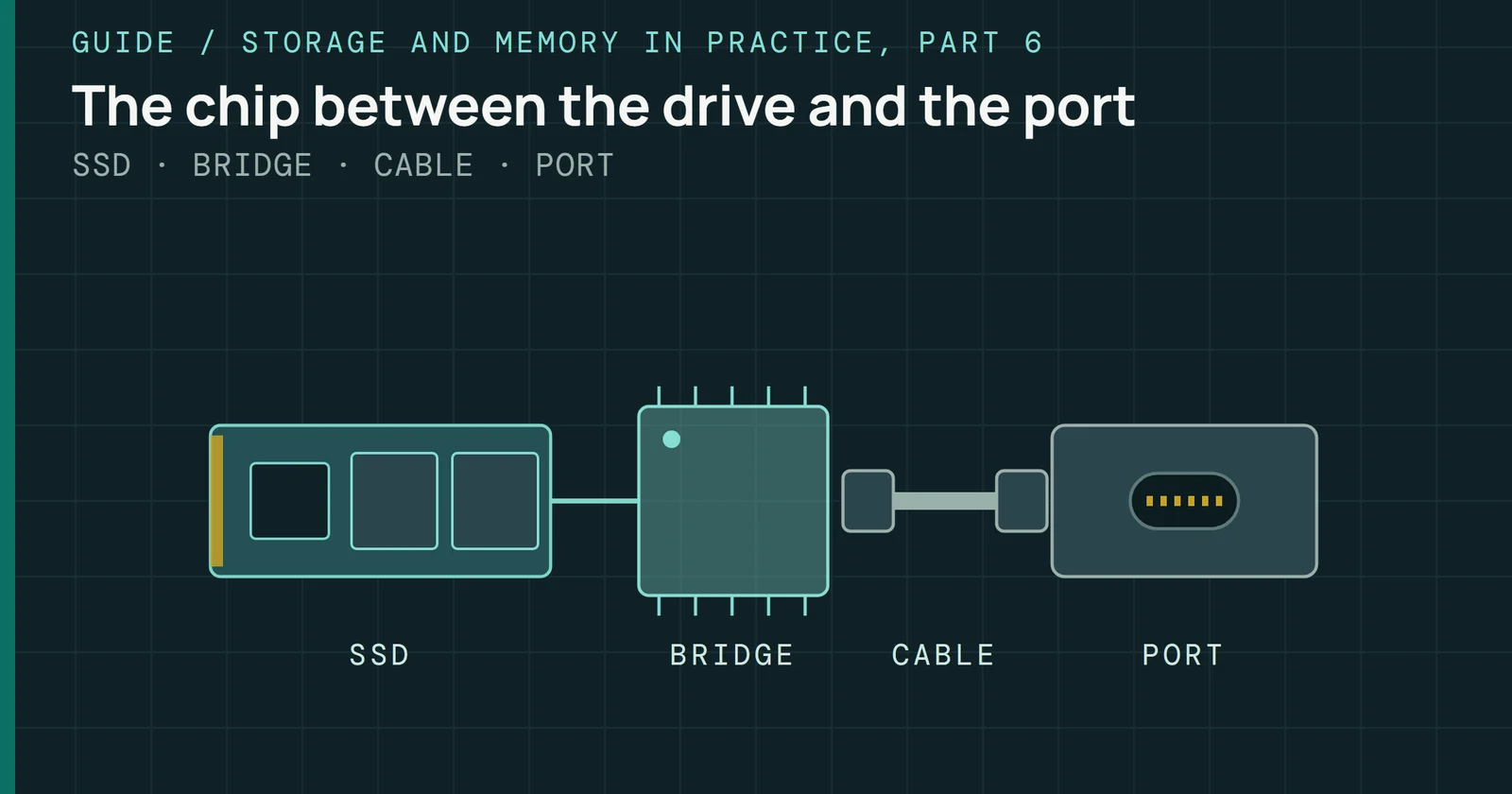
To clone the disk Windows is running from, Atola offers a WinPE image on a USB stick that boots straight into MultiDrive, so Windows is not using the disk while it copies.
Atola told me in October 2026 that it is preparing MultiDrive 1.6, with a drive health overview, detailed SMART data with likely problems highlighted, and automatic before-and-after snapshots kept as a history, so you can see how a drive changes over time. It is also adding SSD sanitization and multipass wiping. Atola gave no release date and hasn’t said which commands the sanitize feature will send.
Paragon for scheduled images
For images on a schedule rather than a one-off copy, Paragon’s Community Edition backs up and restores disks and the OS for non-commercial use. It will not copy the OS to a new disk.
Rescuezilla and Clonezilla from a USB stick
Rescuezilla and Clonezilla boot from their own USB stick, so they work when Windows will not start and need nothing installed. Rescuezilla has the point-and-click screen, and its version 2.6.2 came out on May 16, 2026. It reads and writes Clonezilla’s image format. Clonezilla saves only the used blocks of the file systems it knows.
On a Mac, you migrate instead of cloning
Migration Assistant, which comes with every Mac, copies documents, apps, user accounts, and settings from the old Mac to the new one. It leaves the old Mac as it is, does not replace macOS on the new one, and works between different macOS versions. It can also restore everything from a Time Machine backup, which is the way back when the old Mac has died.
Time Machine
Time Machine is the Mac’s built-in backup. It keeps hourly backups for the past 24 hours, daily backups for the past month, and weekly backups after that, and restores to the same Mac or a different one. If you turn on Encrypt Backup, the password you set is needed to restore. On a drive shared with other files, Apple suggests a separate APFS volume for Time Machine at twice the storage capacity of your Mac.
On a Mac, you migrate instead of cloning
Time Machine can restore a backup to the same Mac or another
Apple’s two built-in routes
A bootable copy
SuperDuper 4 from Shirt Pocket needs macOS 14 Sonoma or later. Its full Erase, then copy mode is free, and registering adds scheduling and Smart Update. Its product page recommends an SSD over a thumb drive or a card, promises a bootable copy only “Apple willing,” and says a backup does not have to be bootable to be restorable. I treat the bootable copy as the extra, since Apple’s own way back runs through Time Machine and Migration Assistant. Shirt Pocket’s FAQ argues for keeping a direct clone, Time Machine, and an offsite or cloud copy, so that no single flaw reaches all of them, which is the 3-2-1 rule below in Mac terms.
Linux: snapshots and file backups are separate tools
On Linux the jobs split across different tools, and the split is sharper than on Windows. Timeshift is maintained by the Linux Mint project. It takes snapshots of the system, using rsync with hard links or the snapshots built into BTRFS, on an hourly, daily, weekly, monthly, or boot schedule. Its own page says it is not a backup tool. It leaves users’ home folders out by default, so a snapshot neither saves nor rolls back your files. If the system no longer boots, a snapshot can be restored from a live USB stick.
Your files need a second tool. Déjà Dup is the backup app in GNOME’s app set and uses Restic underneath. It encrypts and compresses, keeps incremental versions, and runs on a schedule to a local drive, a network server, or a cloud service such as Google Drive. Its help pages say it backs up the whole home folder except Trash and Downloads by default, and warn against a backup folder on the same computer, since one hardware failure would take the files and the backups together.
Linux: snapshots and file backups are separate tools
Timeshift and Déjà Dup each leave out what the other saves
What each tool saves from one Linux disk
For a whole-disk image or a clone, Clonezilla and Rescuezilla boot from their own stick and work on a Linux disk the same way they do on Windows. On a Linux desktop I’d run all three. Timeshift rolls back a bad update, Déjà Dup keeps your files, and an image covers the day you move to a new drive.
Three copies, two devices, one elsewhere
The UK National Cyber Security Centre (NCSC) calls the 3-2-1 rule the most common method for resilient backups, meaning at least three copies, on two devices, with one offsite, and the offsite copy can be in the cloud. A guide from the US National Institute of Standards and Technology (NIST) for IT service providers words it as one primary and two backups of every important file, on two different media types, with one copy outside the home or business.
Three copies, two devices, one elsewhere
Three copies, on two devices, one of them somewhere else
Where each copy lives, with the tools on this page
Read against this page, the PC’s own SSD is copy one. Copy two is the image or file backup on an external drive at home, such as a MultiDrive image, Time Machine, Déjà Dup, or on Windows File History, which copies your Documents, Pictures, Videos, Music, and Desktop to an external drive or network location on its own. The M.2 enclosures in Best peripherals turn a spare SSD into that external drive, and the desktop and backup tier of Best HDDs holds larger drives for a backup box. Copy three is a drive kept at another address, or a cloud service.
The rule does not require any copy to be offline, so the NCSC adds a second condition. At least one backup must be disconnected at any time. That is the copy ransomware on the PC cannot reach, and a clone left plugged in beside the PC does not count.
Automatic copies can stop. In September 2026, Microsoft listed a known issue in which that month’s Windows update might stop File History from creating or updating backups for some users, with a false “Reconnect your drive” message, and updates from September 22, 2026, such as KB5124010, fix it. Open File History now and then and check the date of the last backup.
Before and after a clone
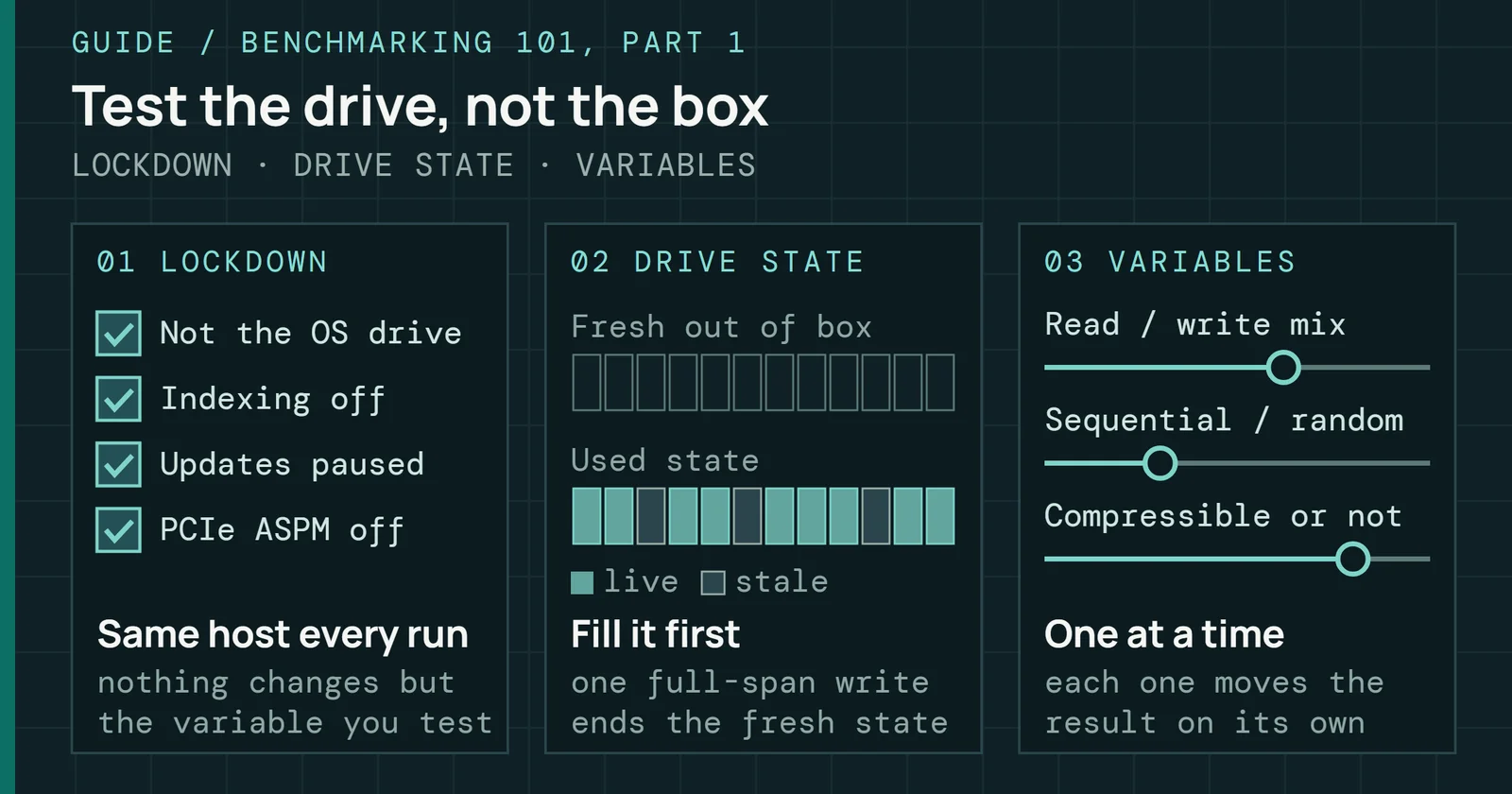
- If BitLocker or device encryption is on, save the recovery key first. Microsoft lists changes to the disk’s partition table and to the boot order among the events that make Windows ask for it. One Level1Techs user reports getting the recovery screen after cloning a drive they believed had no BitLocker, so look for a key even if you never turned encryption on.
- After the copy, shut down and boot from the new disk only. Unplug the old one, or pick the new one in the firmware boot menu. With both attached, Windows can start from the old disk, or write to it, without you noticing.
- Check which disk Windows started from before you change anything.
- If the new SSD is larger, extend the Windows partition into the empty space. Microsoft says the empty space must sit right after the partition; if Extend Volume is grayed out, another partition sits in between, and Microsoft’s guide to extending a volume covers what to do.
- Run Optimize Drives on the new SSD once, so Windows sends TRIM for the free space. The TRIM Check lab shows what that does.
- Keep the old disk as it is until the new one has booted at least twice.
- To wipe an old SSD, use the drive’s own sanitize or secure erase, not a tool that writes zeros. The Secure Erase Lab shows why: an SSD keeps spare space a normal overwrite never reaches.
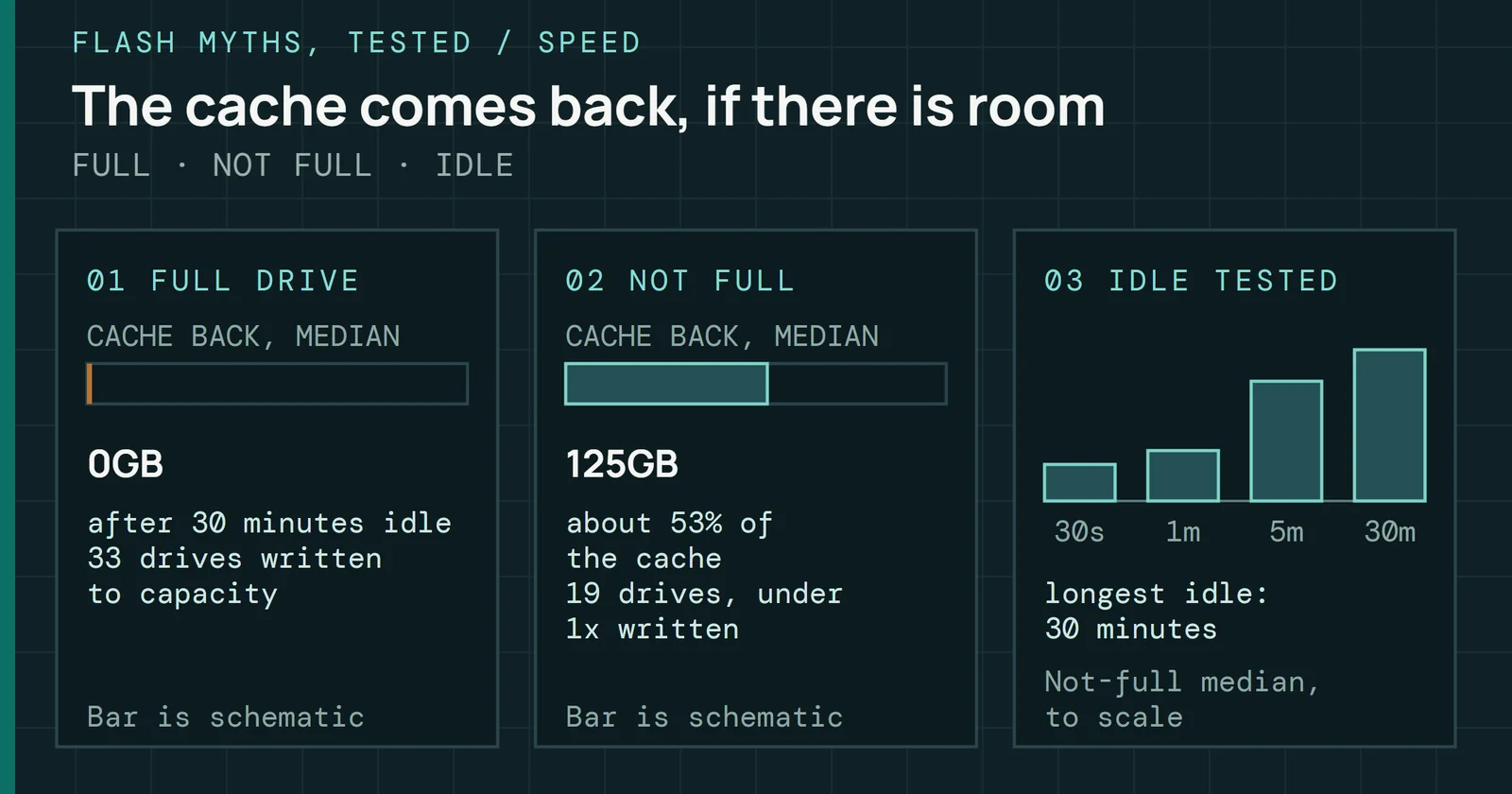
Step 5 is the one I wouldn’t skip after a sector clone. My own sustained-write tests write straight to the raw disk, with no file system and so no TRIM, which leaves a drive treating every address the run wrote as data. I measured what that state does to a drive’s fast single-level cell (SLC) cache, the part it writes to first at full speed. After each idle gap, I wrote to the drive again and counted how much went in at full speed.
Before and after a clone
A drive written end to end got no fast cache back
Median GB written at full speed after each idle gap
The copper line is the 35 drives that test had written end to end, with a median of 0GB at every gap, and still 0GB for the 33 of them with a 30-minute run. The 20 drives it had not filled, 19 of them with a 30-minute run, climbed to a median of 125GB, 53% of their cache. Each drive’s main write run lasted about the same time, so the faster drives wrote more data and were the ones that ended up full. The full group’s median burst speed was 5,870MB/s against 3,197MB/s for the rest. My test can’t fully separate a full drive from a fast one, and the cache myth has the method and that limit in more detail.
A sector clone puts a new SSD in much the same state, with every sector written and none marked free. I haven’t tested a cloned drive, but I expect it to behave like my full drives until Windows trims the empty space. Windows gets there on its own in time, and on my own PC, Event Viewer logs a retrim each week on my NVMe volumes, as I describe in the defrag myth. Running it once by hand means you do not wait for the schedule.
What to watch
The free list is short, and each entry rests on a maker’s promise. Atola’s letter makes that promise for MultiDrive, so it is the line to recheck if a Premium edition appears, and version 1.6 is the next test of it. Atola has offered to show me the release when it is ready, and its SSD sanitization is the part I’ll look at first. If it sends the drive’s own sanitize command, the drive does the erasing itself. If it writes over the drive from Windows, extra passes still miss the spare space that step 7 and the Secure Erase Lab warn about.
What to watch
MultiDrive 1.6 is planned, with no release date
What Atola says is coming, and what it has not said
For a one-off move to a bigger SSD, the better start is MultiDrive, then trimming the new drive and making an image of it. That reading rests on what the makers themselves say. For scheduled images at home, Paragon’s Community Edition does the job. An old Reflect Free install is a weak base for a backup plan, however well it works today.
Sources
Primary is the original paper, standard or datasheet. Secondary is a review, a vendor summary or a news report. Measured is my own test data.
Show all 29 sources, 28 primary
- PrimaryBitlocker enabled itself after cloning drive?Level1Techs Forums, 2024
- PrimaryHow to clone SSD to SSD free: Windows 10 and 11 guideMultiDrive, 2025
- PrimaryAtola Technology, message to the author about MultiDrive 1.6Atola Technology, 2026
- PrimaryTool & Software DownloadSamsung Semiconductor Global, 2026
- PrimaryAbout the companyAtola Technology
- PrimaryBack up your Mac with Time MachineApple Support
- PrimaryBackup and restore with File HistoryMicrosoft
- PrimaryBitLocker recovery overviewMicrosoft Learn
- PrimaryClonezilla - AboutClonezilla
- PrimaryCompare Different Editions of AOMEI BackupperAOMEI
- PrimaryDéjà Dup Backups – Apps for GNOMEGNOME
- PrimaryDéjà Dup help: Creating BackupsGNOME
- PrimaryEasy disk cloning and imagingRescuezilla
- PrimaryExtend a basic or dynamic volume in Windows and Windows ServerMicrosoft Learn
- PrimaryFree Data Recovery softwareParagon Software Group
- PrimaryMacrium Product Support PolicyMacrium Software
- PrimaryMacrium Reflect Free Updates EndWindows 11 Forum
- PrimaryMultiDrive - Free Disk Cloning, Backup, Erasing SoftwareMultiDrive
- PrimaryMultiDrive download: free disk cloning software for Windows 10 and 11MultiDrive
- PrimaryNIST NCCoE: Protecting Data from Ransomware and Other Data Loss Events, a guide for managed service providersNIST National Cybersecurity Center of Excellence
- PrimaryOffline backups in an online worldNational Cyber Security Centre
- PrimaryRescuezilla releases (GitHub)GitHub
- PrimarySuperDuper! 4 FAQ — Shirt PocketShirt Pocket
- PrimarySuperDuper! 4—Shirt PocketShirt Pocket
- PrimaryTimeshift: system restore tool for Linux (Linux Mint on GitHub)GitHub
- PrimaryTransfer to a new Mac with Migration AssistantApple Support
- PrimaryUse WinPE to Clone Your Windows Boot DriveMultiDrive
- PrimaryWindows 11, version 26H2 update historyMicrosoft
- MeasuredThe author’s own measurements