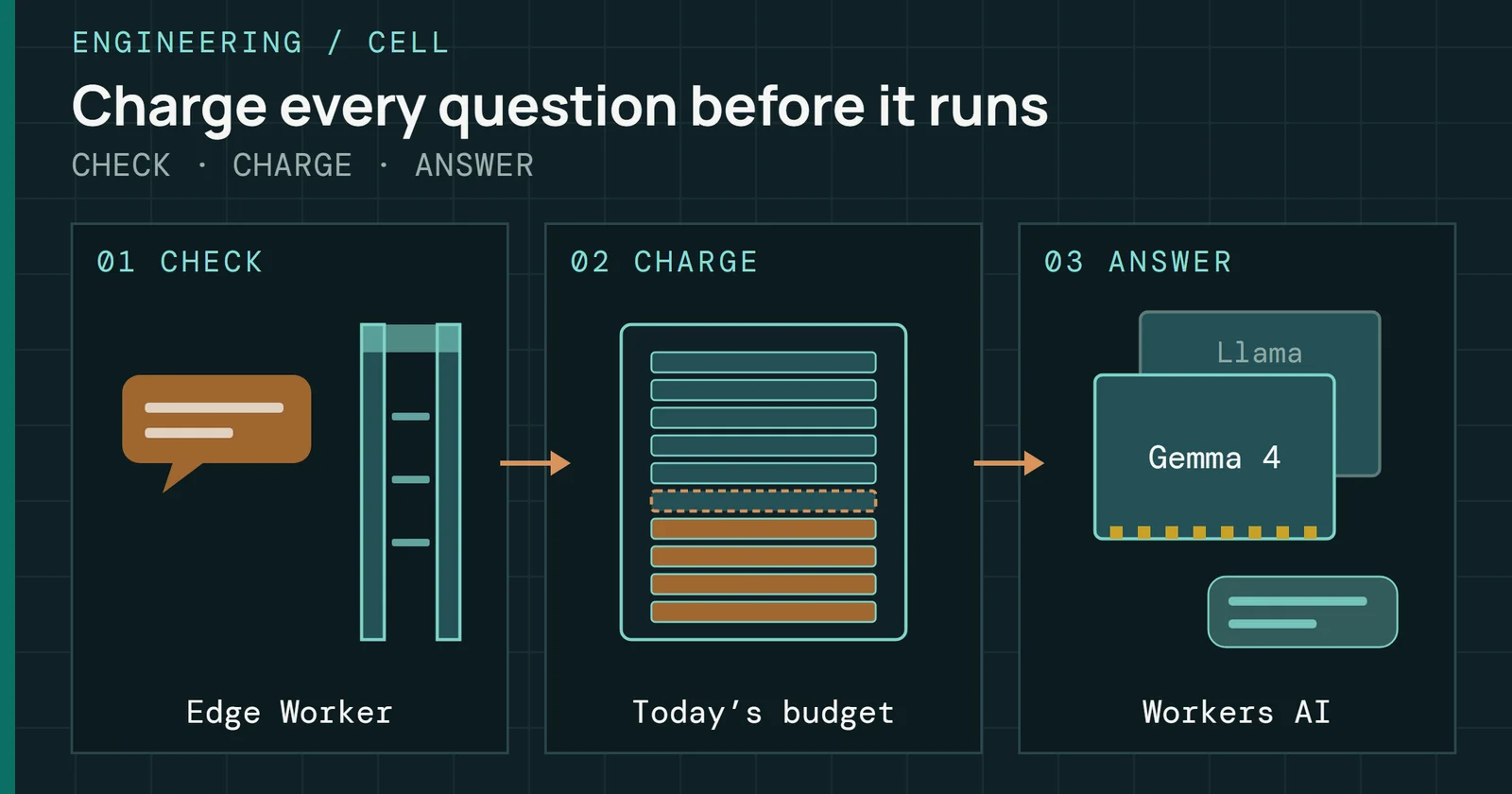
A NAS ends up running software and holding the only copy of what that software makes. After the file sharing and remote access in Part 6, Sharing and Remote Access, two jobs remain: running apps without breaking the storage underneath them, and backing up the NAS itself. A snapshot does not do the second job. Synology’s Snapshot Replication help defines a snapshot as a point-in-time copy stored in the same volume as the data, so whatever destroys the volume destroys its snapshots too.
Running a NAS
Running a NAS, Part 7: Apps and Backing Up the NAS
Running apps and containers on a NAS, and backing the NAS itself up with snapshots, replication, vendor tools, rclone, restic, Borg and Kopia.
On this page 21 sections
This is Part 7 of Running a NAS. It covers how containers and app stores work on TrueNAS, Synology, QNAP, Unraid, and OpenMediaVault, the systems Part 1, NAS Operating Systems Compared set side by side, what Plex, Jellyfin, and Immich ask of the hardware, and the tools that copy a NAS somewhere else: replicated snapshots, vendor backup apps, rclone, restic, Borg, and Kopia. It ends with the cloud targets and locks that keep ransomware from deleting the copy. The Cloning and Backup guide owns the 3-2-1 rule, so this part assumes it and stays on tools.
Containers and app stores
TrueNAS 24.10 moved its Apps backend from Kubernetes to Docker, and its notes say supported catalog apps on 24.04 migrate to Docker deployments automatically on upgrade. TrueNAS announced the 24.10 release on October 29, 2024, and that line received its final update, version 24.10.2.4, on August 7, 2025. Custom Docker images deploy through a guided wizard or a Compose YAML file, and the same App catalog offers Dockge and Portainer as management front ends on top. Part 1 names 25.10.8 as the General release on TrueNAS’s software status page, so the 24.10 notes mark where the Apps backend changed and are not the release to install today.
Synology and QNAP
Synology’s Container Manager is a Docker management interface built into DSM. QNAP’s Container Station runs both Docker and LXD containers, and its quick start guide applies to QTS 5.1.0, QuTS hero h5.1.0, and later releases, and the product page adds Kata lightweight virtualization to the list.
Unraid and OpenMediaVault
Unraid’s Community Applications plugin adds an Apps tab that works like an app store and saves each app’s settings as a Docker template XML file on the boot drive. Unraid’s Docker documentation says it does not natively support Docker Compose, so install instructions written around a Compose file need adapting. On OpenMediaVault, the compose plugin for OMV 8 manages only containers created through its own interface, which leaves anything started from the command line outside its view. The plugin has a schedulable backup of its own that stops the running containers, copies the compose files and relative-path volumes to a backup folder with rsync, and overwrites the previous copy. Its page says versioned backups need an external backup application after that copy.
Where an app’s definition lives
Containers and app stores
An app's definition is a file the backup has to carry
This guide reads the real difference between these systems as where an app’s definition lives. It sits in a Compose file on TrueNAS and OpenMediaVault and in a template on the boot drive on Unraid, which makes that file part of what a backup has to carry besides the data.
What the popular apps ask of the hardware
Plex’s hardware acceleration article says hardware-accelerated streaming requires an active Plex Pass subscription and that Plex Media Server uses Intel Quick Sync Video for decoding and encoding. For NAS users it says a Jasper Lake or newer CPU is needed to transcode to High Efficiency Video Coding (HEVC) output reliably. Jellyfin’s Intel guide says not to use Intel processors with an F suffix, since they have no integrated GPU, and that Quick Sync and VA-API transcoding work on a headless server with no monitor attached. For Intel Quick Sync the processor decides whether a NAS can transcode at all, and Plex needs the subscription on top, so it is a purchase question and not a setting.
What the popular apps ask of the hardware
The processor decides transcoding, and Immich wants RAM and an SSD
Immich’s requirements page documents a minimum of 6GB of RAM and recommends 8GB. For storage, the page says the Postgres database should sit on local SSD storage and never on a network share. On a NAS, that puts the database on an SSD volume or pool inside the box, which is the kind of job Part 4, SSDs in a NAS covers.
A snapshot shares its volume’s fate
Snapshots are cheap to take and quick to roll back to, and they cover an accidental delete. Synology’s help page still describes a snapshot as stored in the same volume as the data, so a failed volume, a stolen NAS, or a fire takes the copies along with the originals. Part 2, Pools and Filesystems on a NAS says the same of ZFS, where snapshots live in the same pool as the data. A snapshot becomes a backup when it leaves the box.
Replicating on Synology
Synology’s Snapshot Replication builds on Btrfs point-in-time copies that can be replicated to other Synology systems, and its help page describes replication as syncing snapshots from a source server to a destination server. Per the feature page, snapshots can be encrypted before replication and retention follows a Grandfather-Father-Son policy.
Sending snapshots with ZFS
On ZFS systems, the OpenZFS documentation says an incremental send reads only the changed blocks, so the cost of replication follows the amount of changed data and not the size of the dataset. According to the same page, incremental replication needs one snapshot or bookmark in common on both sides. Without it, the next incremental fails and a full resend is needed, so a retention policy that prunes the last shared snapshot on either side turns the next run into a full copy. TrueNAS documents that remote replication needs the admin user on the remote system to have SSH access, the connection’s public key, a home directory, and sudo permission.
What a replica leaves open
A snapshot shares its volume’s fate
A snapshot becomes a backup only when it leaves the volume
Replicating to a second NAS gives a second copy on different hardware, and the 3-2-1 rule in the Cloning and Backup guide says what a set of copies should add up to. Replication alone leaves open whether ransomware on the first NAS can reach the second one, and the last section returns to that. Boxes for a second NAS are in Best NAS, and drives for it in the desktop and backup tier of Best HDDs.
Backup tools from the NAS makers
Synology’s Hyper Backup keeps multiple versions using block-level incremental backup and deduplication. Its specification page puts the limit at 65,535 versions, with block-level deduplication for entire-system backups and file-level deduplication for folder backups. Client-side and transfer encryption use AES-256 and ECC Curve25519. Synology’s Active Backup for Business covers physical and virtual environments from one dashboard and also uses block-level incremental backups and deduplication.
QNAP’s Hybrid Backup Sync (HBS 3) documentation lists Simple Versioning, which retains a specified number of versions, and a deduplication feature called QuDedup for NAS-to-NAS jobs. Quick integrity checks are not available on NAS-to-NAS jobs when QuDedup is off. Client-side encryption cannot be disabled once applied, and its password cannot be changed afterward, so pick that password and store it somewhere other than the NAS before the first run.
Backup tools from the NAS makers
Each maker's backup app keeps versions, dedupes and encrypts
A backup app is software to patch as well, because QNAP says the Qlocker ransomware exploited a flaw in certain versions of this same Hybrid Backup Sync app, a case Part 6 covers.
Open tools: rclone, restic, Borg, and Kopia
rclone calls itself rsync for cloud storage. Its sync command updates the destination to match the source, deleting files there if necessary, so it mirrors the NAS and keeps no history. Anything deleted or overwritten on the source disappears from the destination on the next run. The crypt layer encrypts file contents with NaCl SecretBox, built on the XSalsa20 cipher and Poly1305, and encrypts file and directory names by default.
restic encrypts everything, and TrueNAS builds on it
restic encrypts all repository files with AES-256 in counter mode and authenticates them with a Poly1305-AES message authentication code. TrueNAS builds on it, since its TrueCloud backup tasks use restic to encrypt and manage the cloud repository.
Borg and Kopia
Borg deduplicates with content-defined chunking, storing only chunks the repository has not seen. It encrypts client-side with 256-bit AES and verifies integrity with HMAC-SHA256. Kopia stores multiple copies of the same file once, encrypts everything before it leaves the machine, file names included, and does not allow unencrypted backups. It offers AES-256 and ChaCha20.
Which of the four tools mirrors
Open tools: rclone, restic, Borg, and Kopia
Only rclone sync mirrors, so a NAS mistake reaches the copy
Of the four, only rclone’s sync behaves as a mirror, and I read that as a reason not to make an rclone mirror the only copy. A mistake on the NAS reaches the destination on the next run.
Cloud targets and what they cost
As of November 2026, Backblaze’s pricing page lists B2 storage from $6.95/TB/month, with egress free up to 3x the average monthly data stored and $0.01/GB beyond that. Synology’s C2 OneStorage plan bundles C2 Storage for Hyper Backup, Hybrid Share, C2 Object Storage, and Surveillance365 at $79.99 a year for 1TB on annual billing in North America, before VAT. Synology also says C2 Object Storage is S3-compatible with immutability and carries no charge for egress or API requests.
Cloud targets and what they cost
Read the egress terms, because a restore pulls everything back
Prices and plans change, so treat these as a snapshot of one month. Egress is the line to read before choosing, because a restore is the one time a backup target sends everything back.
Locks that keep ransomware from deleting the copy
Part 6 covers how ransomware campaigns reach NAS boxes. A backup that the NAS’s own credentials can delete or overwrite fails the same way the data does, so the target has to refuse deletion on its own side. The Cloning and Backup page explains why one copy should stay out of reach of an infected machine, and the locks below give a NAS target that property without unplugging a drive.
Immutable snapshots on Synology
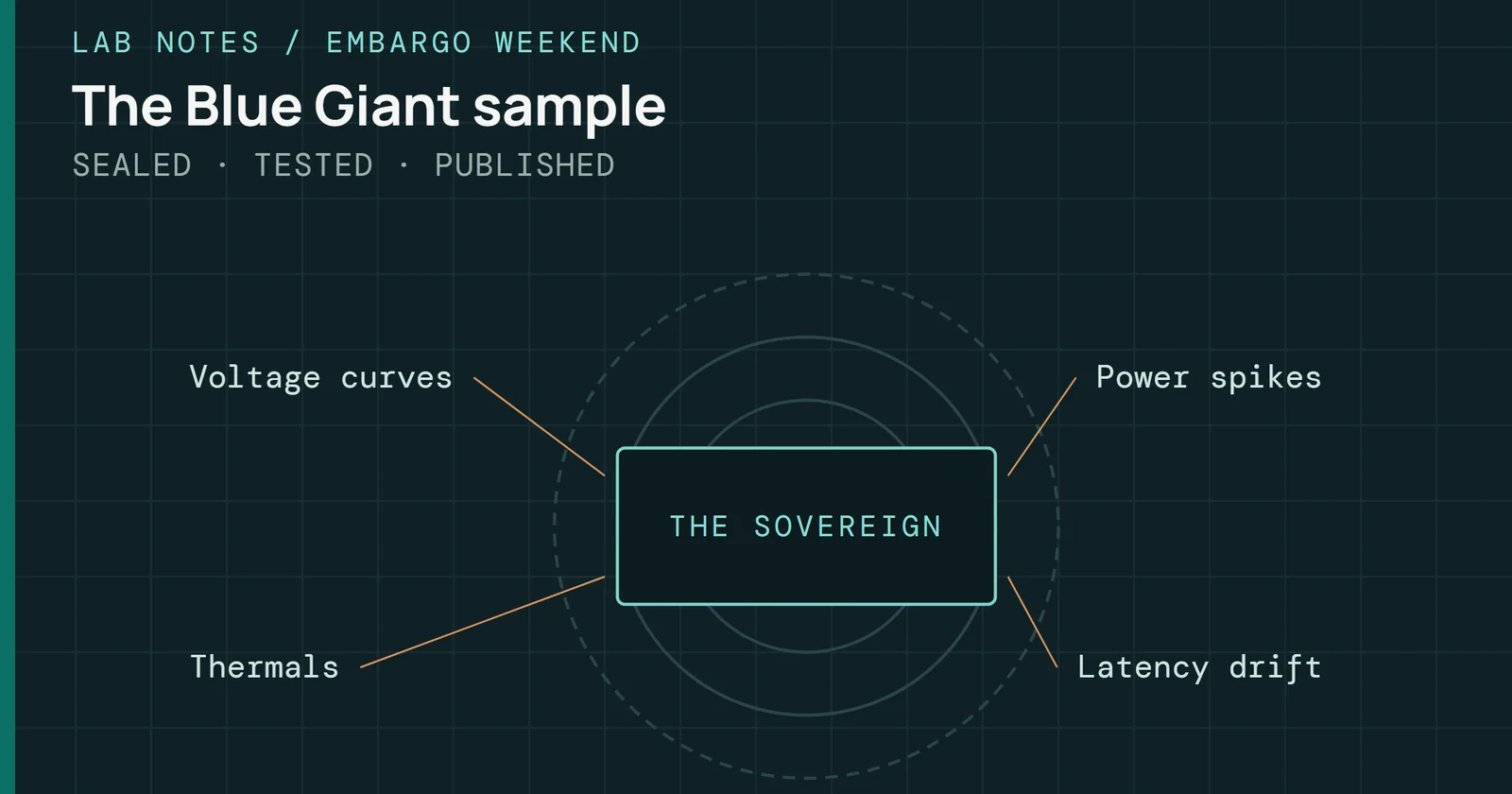
Synology’s immutable snapshots are write once, read many (WORM) snapshots that block changes and deletions for a set period. Its knowledge base article recommends a protection period of 7 to 14 days and lists DSM 7.2 or newer as a requirement, and Synology’s immutable backup post adds that the NAS must be a WORM-supported model. A lock that expires protects only as long as it lasts, so the period has to outlast the time it takes to notice a problem. Hyper Backup adds a limit on immutable snapshots, since its specification page says WriteOnce folders and files lose WORM protection when backed up in folders.
Object Lock in the cloud
Backblaze’s Object Lock prevents a file from being changed or deleted until a set date, and the page names ransomware among the threats it guards against. In compliance mode no user can remove the retention setting, while governance mode can be overridden by keys with the right capability. Amazon’s S3 Object Lock works the same way in compliance mode, where no user, including the account’s root user, can overwrite or delete a protected object version.
Append-only repositories
Self-hosted targets can do part of the job. restic’s rest-server has an append-only mode that allows new backups and blocks deleting or modifying existing ones. The restic design document says that with append-only access an attacker who compromises the host cannot delete or manipulate old backups, though they can add bogus ones. In the same document, restic is not designed to detect an attacker who deletes files at the storage location, so on this reading restic needs append-only access before it is safe against that threat. Borg’s append-only option is weaker. It restricts only how repository segment files are written, and delete and prune commands are still allowed.
What the three locks have in common
Locks that keep ransomware from deleting the copy
Ask who can delete the copy, then pick the lock that says nobody
The question to ask of any target is who can delete the copy. The answers above run from a lock nobody can remove in compliance mode, through one an administrator’s key can override in governance mode, to a repository that only blocks some operations. I read the first as the strongest on paper and the last as a setting to verify, not to assume.
Test the restore before you need it
A backup job can fail without anything on the NAS looking wrong, and none of the tools above proves a copy is usable until a file has come back from it. Restore one file from each copy, from the target that holds the lock, and write down the encryption password where the NAS cannot lose it. The app definitions from the first section belong in that test too, because a restored share without its Compose file or template leaves the apps to be rebuilt from memory.
Test the restore before you need it
A backup is proven only when a file has come back from it
Part 8, Keeping a NAS Healthy picks up from here with SMART monitoring and alerts, scrub schedules, drive replacement, UPS shutdown, and updates. It also names the system configuration to back up before an update, which a restore needs as much as the data and the app definitions do.
Sources
Primary is the original paper, standard or datasheet. Secondary is a review, a vendor summary or a news report. Measured is my own test data.
Show all 36 sources, 36 primary
- PrimaryQNAP QSA-21-12 Qlocker Ransomware (publisher page printed to PDF)QNAP, 2021
- PrimaryTrueNAS 24.10 “Electric Eel” Powers Up Your StorageTrueNAS Open Enterprise Storage, 2024
- PrimaryC2 OneStorage Pricing (Synology page printed to PDF, read 2026-11-05)Synology, 2026
- PrimaryImmutable Backup: The Only Thing Ransomware Can't TouchSynology Blog, 2026
- Primary24.10 (Electric Eel) Version Notes (Archived)truenas.com
- PrimaryActive Backup for Businesssynology.com
- PrimaryB2 Cloud Storage Pricingbackblaze.com
- Primaryborg serve — Borg - Deduplicating Archiver 1.4.5 documentationborgbackup.readthedocs.io
- PrimaryCloud Storage Object Lockbackblaze.com
- PrimaryCommunity Applicationsdocs.unraid.net
- PrimaryContainer Manager help, DSM 7 (publisher page printed to PDF)Synology
- PrimaryCryptRclone
- PrimaryFeatureskopia.io
- PrimaryGitHub - rclone/rclone: 'rsync for cloud storage' - Google Drive, S3, Dropbox, Backblaze B2, One Drive, Swift, Hubic, Wasabi, Google Cloud Storage, Azure Blob, Azure Files, Yandex FilesGitHub
- PrimaryHyper Backup Technical Specificationssynology.com
- PrimaryIntel GPUjellyfin.org
- PrimaryIntroduction — Borg - Deduplicating Archiver 1.4.5 documentationborgbackup.readthedocs.io
- PrimaryLocking objects with Object Lock - Amazon Simple Storage Servicedocs.aws.amazon.com
- PrimaryManaging TrueCloud Backup Taskstruenas.com
- Primaryomv8:omv8_plugins:docker_compose [omv-extras.org]wiki.omv-extras.org
- PrimaryOverviewdocs.unraid.net
- PrimaryQNAP Container Station product pageQNAP Systems, Inc. - Network Attached Storage (NAS)
- PrimaryQNAP Container Station Quick Start Guide (Docker and LXD)QNAP Systems, Inc. - Network Attached Storage (NAS)
- PrimaryQNAP HBS 3 creating a backup job (versioning, QuDedup, encryption)docs.qnap.com
- Primaryrclone syncRclone
- PrimaryReferences — restic 0.19.1 documentationrestic.readthedocs.io
- PrimaryReplication Taskstruenas.com
- PrimaryRequirementsdocs.immich.app
- Primaryrest-server/README.md at master · restic/rest-serverGitHub
- PrimarySend and Receive — OpenZFS documentationopenzfs.github.io
- PrimarySnapshot Replication help, DSM 7 (publisher page printed to PDF)Synology
- PrimarySynology Inc.synology.com
- PrimarySynology Inc.synology.com
- PrimaryTrueNAS Software Statustruenas.com
- PrimaryUsing Hardware-Accelerated StreamingPlex Support
- PrimaryWhat is an immutable snapshot? (Synology Knowledge Center) (publisher page printed to PDF)Synology