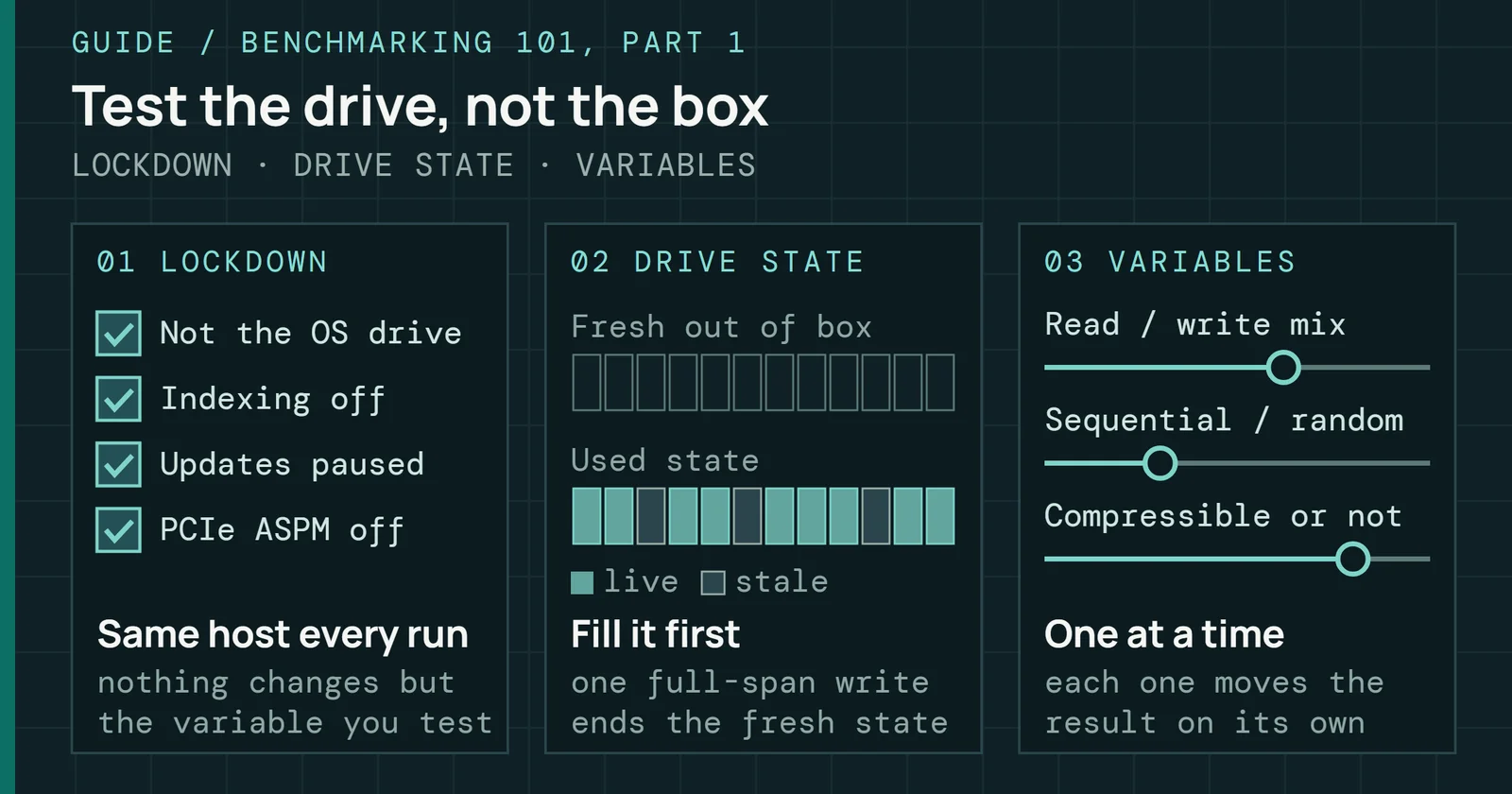
A NAS that runs fine today says little about next year, because in Backblaze’s 2016 data about three in four failed drives had a warning sign in their SMART health record first, and the rest gave no warning at all. The previous part of Running a NAS was Apps and Backing Up the NAS, which covered the NAS’s apps and the tools that copy its data to another place, including the protections that stop ransomware from deleting that copy, so data survives losing the NAS itself. This part covers the routine that decides how often a drive is lost unnoticed. It takes in reading drive health, running self-tests and scrubs, replacing a drive, riding out a power cut, and applying updates. It ends where NAS Problems Found Too Late begins.
Running a NAS
Running a NAS, Part 8: Keeping a NAS Healthy
Keeping a NAS healthy: SMART alerts, scrubs, replacing a drive and the rebuild window, UPS shutdown and updates.
On this page 15 sections
Each NAS operating system exposes these controls under different names. Synology’s DSM, QNAP’s QTS, TrueNAS, and Unraid appear throughout, and the page names the setting each one calls it. The TrueNAS pages cited here describe earlier releases than the current one in NAS Operating Systems Compared, so check a menu name against the version installed. QNAP appears only under self-tests and updates; this part does not cover its scrubs, drive replacement, UPS or alerts.
Which SMART attributes predict failure
Self-Monitoring, Analysis and Reporting Technology (SMART) is the health record a drive keeps about itself. Drives report over 70 SMART statistics, and a 2014 post from Backblaze names only five of them as the ones it uses. Its five are 5 (reallocated sectors count), 187 (reported uncorrectable errors), 188 (command timeout), 197 (current pending sector count), and 198 (uncorrectable sector count). Backblaze investigates a drive when the raw value of any of them is greater than zero. For 187 the rule is firmer, because it schedules the drive for replacement once that value goes above zero.
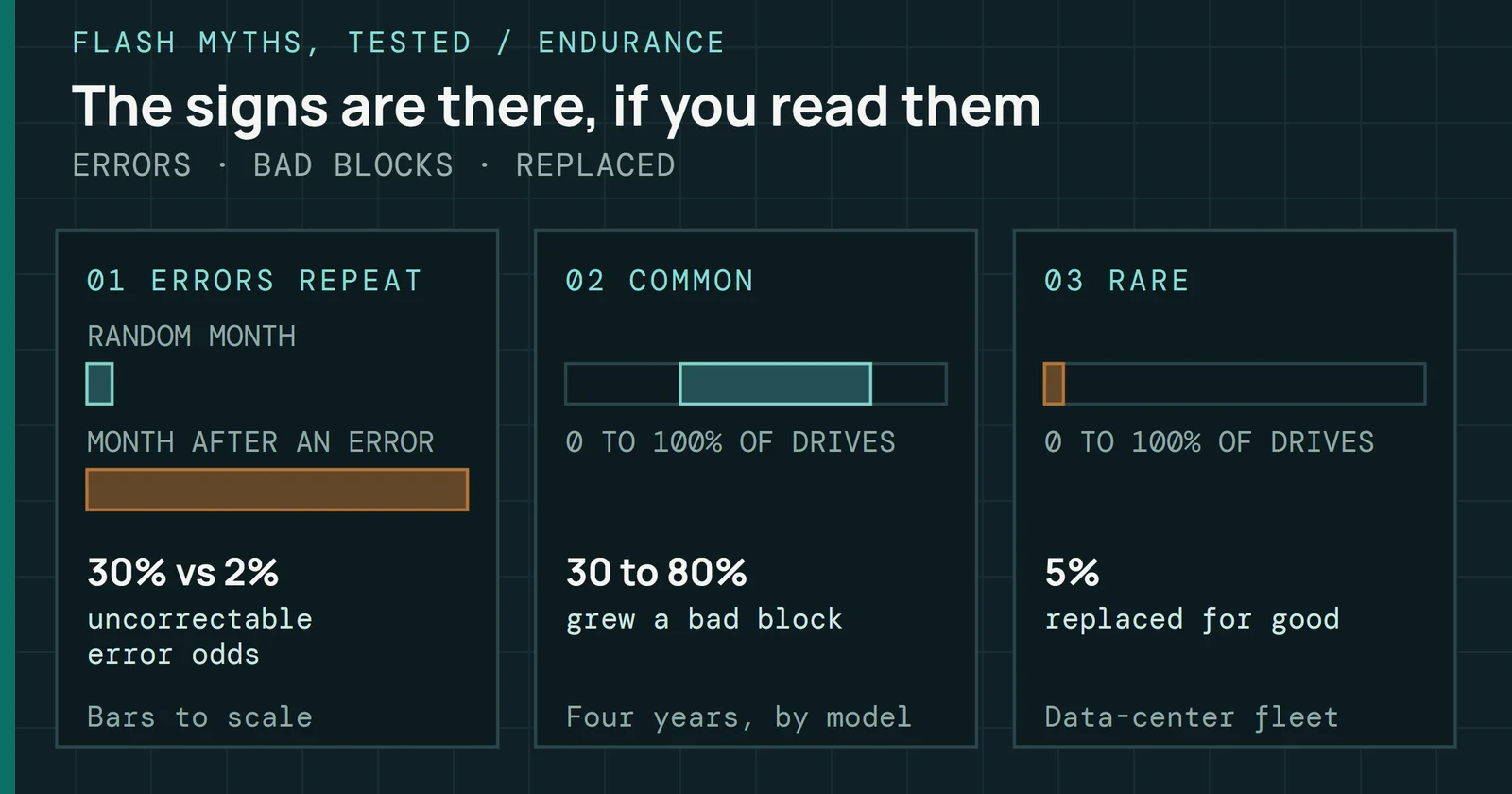
Backblaze’s 2016 data shows what the five can and cannot do. Of the drives that failed, 76.7% had at least one of the five above zero, against 4.2% of drives still operating. So a nonzero value is a strong signal and an uncommon one. Yet 23.3% of failed drives showed no warning from the statistics Backblaze records. Even a clean report does not make a drive healthy, which is why the routines in the rest of this part exist.
Which SMART attributes predict failure
Most failed drives showed a SMART warning, but 23.3% showed none
Three points come from the same posts. A small raw value on one attribute means little on its own until it is combined with other factors, with two remapped sectors as Backblaze’s example. Only 197 and 198 correlate well enough to count as one indicator, while the others are largely independent. And every attribute it tracks except 197 is cumulative, so the period over which the errors were reported matters. A count that grew this month says more than one that has not moved in years. Backblaze reads these values once a day for each drive with smartmontools.
What the NAS systems watch
Unraid watches 5, 187, 188, 197, 198, and 199 by default and shows an orange icon on the Dashboard when one changes. Its documentation says a pending sector count above zero means the drive cannot read some areas. It says to replace the drive if the value does not return to zero after a few days. That matches Backblaze’s caution about 197, the one attribute that is not cumulative.
On the same Unraid page, SMART monitoring works for SATA drives but is not available for SAS drives. My own server runs Unraid and its cache pool is built from SAS SSDs, so by the documentation those drives aren’t covered by the attribute watching described here.
NVMe drives are a separate case on Synology, where an NVMe SSD has its own built-in monitoring and does not support the Storage Manager S.M.A.R.T. test. Wear on an NVMe SSD shows in that health log. Its Percentage Used field is a vendor estimate of endurance consumed, and the value is allowed to exceed 100, so read it as a vendor estimate of endurance used. The log also reports Data Units Written, counted in units of 512,000 bytes. The NVMe SMART Decoder reads both in the browser.
A Windows pool watches its drives with different tools, which Drive Pooling on Windows covers.
Self-tests and when to run them
Reading attributes only shows what the drive has already noticed. A self-test makes it look. The smartctl manual documents a short ATA test that is usually under ten minutes and can run during normal operation, and a long test that takes tens of minutes to several hours. Both kinds of test check the electrical and mechanical performance as well as the read performance of the disk.
Two cautions come from the same manual. A running self-test can degrade drive performance, and frequent I/O requests make the test last longer, which I read as a busy NAS stretching the schedule it was meant to keep. If the machine is shut down or power cycled mid-test, the manual says no harm should result and the test is aborted or resumes.
Scheduling on each system
smartd is the scheduler in smartmontools, and its configuration file schedules tests with the -s option, where L stands for a long test and S for a short one. The manual’s own example runs a short test every day and a long test every Saturday, both in the early morning.
Self-tests and when to run them
A short test every day and a long test every Saturday
Vendors wrap the same idea in menus. Synology’s Storage Manager offers a Quick Test and an Extended Test and a Test Scheduler under HDD/SSD settings on supported models. QNAP’s QTS has a rapid test that takes about one minute and a complete test that covers the full disk surface, and it can schedule both periodically. TrueNAS documents the same tests on its page for managing self-tests.
TrueNAS adds the rule that matters most when several jobs share a pool. It recommends scheduling tests when the system is in a low-usage state and says to avoid running them at the same time as a scrub or other data protection task, because tests can offline disks. A long test should not overlap the scrubs covered next. The smartctl manual puts a long test at tens of minutes to several hours, so leave room for it to finish.
Scrubs and parity checks
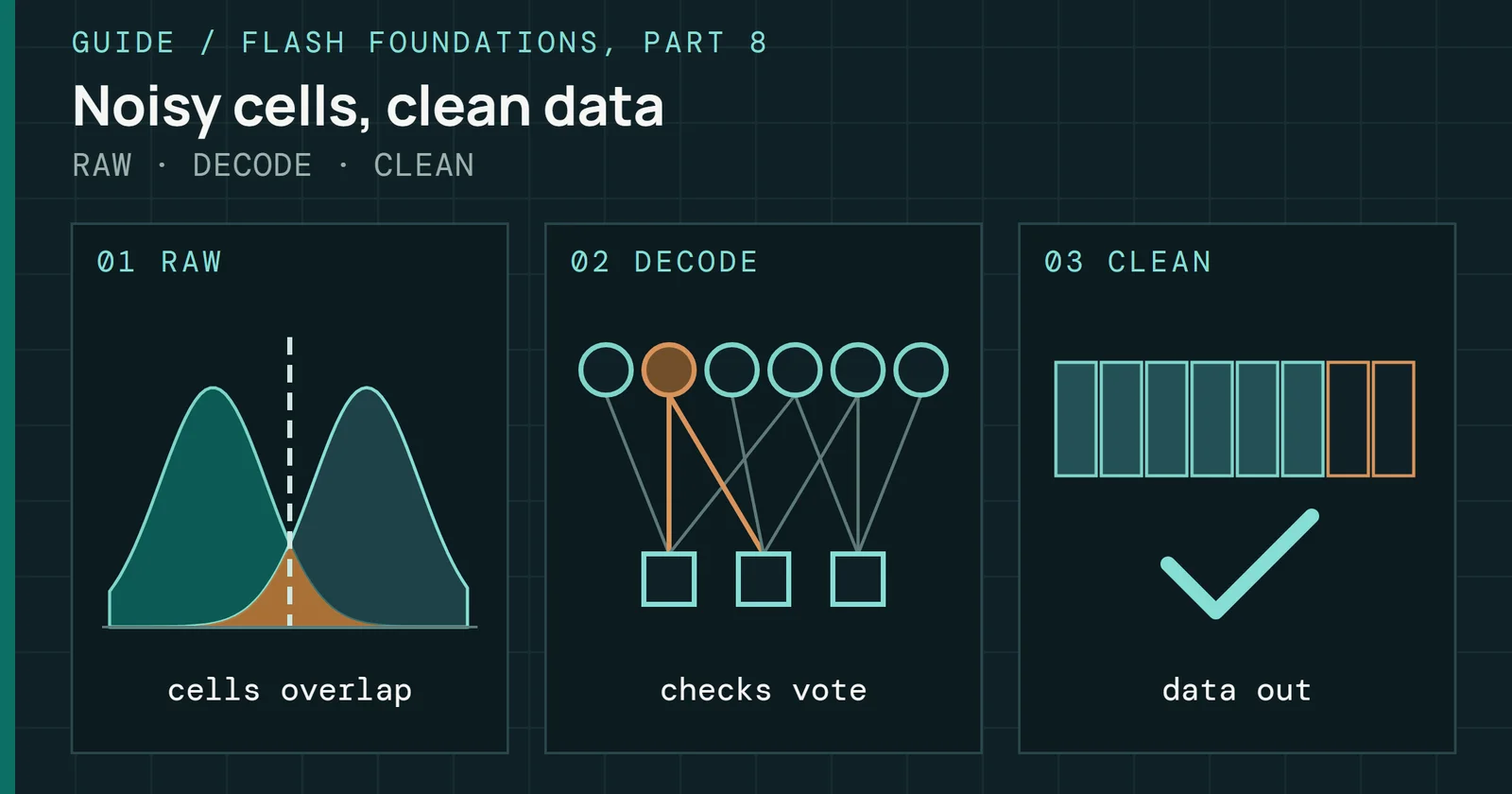
A self-test asks one drive about itself, and a scrub asks the data. An OpenZFS scrub walks all data in a pool and verifies each block’s checksum, repairing damage where redundancy allows. Part 2, Pools and Filesystems on a NAS sets scrubs against resilvers and explains how ZFS, Btrfs, and Unraid lay data out, so this section only covers how often to check it.
How often
The OpenZFS documentation gives monthly as a common baseline for consumer disks and quarterly for enterprise disks. That page also notes that scrubs are I/O-intensive and only one scrub or resilver runs at a time. TrueNAS creates a scrub task when a pool is created and sets it to run every Sunday at midnight, which is a weekly default. Its Threshold Days setting controls how many days must pass before a completed scrub can run again. TrueNAS gives its reasons for scrubbing as that scrubs detect silent data corruption caused by transient hardware issues and give early warning of disk failure.
Synology recommends running data scrubbing periodically and gives no interval. Which volumes and shared folders can be scrubbed at all is covered under Synology and Btrfs in Part 2. Scheduled scrubs also stop if the NAS was shut down improperly during writing and resume automatically at the next power-on.
Scrubs and parity checks
Monthly is the usual scrub interval; quarterly suits enterprise disks
Unraid’s counterpart is the parity check, and its documentation advises automated, correcting checks monthly or quarterly, scheduled under Settings and Scheduler. After an unsafe shutdown it starts a parity check on its own in the mode set there, which is non-correcting by default. The sources differ on cadence. OpenZFS and Unraid advise monthly or quarterly, TrueNAS defaults to a weekly task, and Synology names no interval. Keeping scrubs and long self-tests on different days is my own advice, since TrueNAS says only to avoid scheduling them at the same time.
Replacing a drive
A failing drive is replaced before it dies or after, and Synology’s Replace Drive feature swaps a drive in a storage pool when drive issues are detected, which keeps the pool from becoming degraded. Without it, a pool becomes Degraded when a drive becomes defective but stays accessible because no data has been lost. A nonzero 187, or a 197 that stays above zero, is a reason to use the first route, since Backblaze schedules replacement for the first and Unraid says to replace a drive for the second.
Replacing a drive
Swapping a drive early keeps the pool from ever being degraded
Synology’s repair procedure sets the practical rules. On a model without hot-swap support, the NAS must be powered off before drives are removed or installed. A replacement is erased during the repair. On the RAID pool types the help page lists, it must be at least as large as the smallest drive in the pool, and SHR pools have a size rule of their own that Part 2 covers. Fast Repair is on by default and skips unused space to restore RAID protection faster than a traditional rebuild. Hot spares repair a degraded pool automatically. DSM limits repair speed by default to protect other services, and the RAID resync speed limit can be raised to shorten the repair.
Resilvering on TrueNAS
On TrueNAS, replacing a disk triggers a pool resilver automatically, which can take a long time on pools with a lot of data. TrueNAS does not recommend replacing a failed disk after a hot spare has taken over, because that causes two resilver events. Its scrub-task page also advises avoiding heavy load during a resilver, naming replication, SMB, NFS, and rsync transfers, self-tests, and scrubs. OpenZFS offers a faster route for some layouts. Its sequential reconstruction restores redundancy faster than a healing resilver but does not verify checksums. A scrub starts automatically afterward, and raidz does not support the method.
Rebuilding on Unraid
On Unraid, rebuilding a disk can take several hours to more than a day for larger drives. Drive capacity, disk speed, and system load are the factors it names. My own server runs dual parity. Part 2 covers how single and dual parity differ when a disk fails during a rebuild.
How long a rebuild takes and what it risks
A rebuild reads the surviving drives for as long as the pool is degraded, so its length is the length of the exposed period. The estimate below is arithmetic on two data sheet inputs, and nobody ran a rebuild to check it. It also assumes a drive that holds its rated speed through the whole rebuild. How drives that use shingled magnetic recording (SMR) behave during a rebuild is in the last part of the series, and How a Hard Drive Works explains the recording methods themselves.
The time estimate
The Seagate IronWolf Pro 24TB HAMR data sheet gives a maximum sustained transfer rate of 240MB/s at the outer diameter, so the average rate over a whole drive is lower. By my estimate, one full pass over 24TB at 240MB/s takes about 28 hours at best. Real rebuilds run longer, because system load is among the factors that stretch them. Pools that rebuild only used space, as Synology’s Fast Repair does, can finish sooner than a full pass.
The error estimate
That data sheet also gives a maximum nonrecoverable read error rate of 1 per 10¹⁵ bits read. WD’s Red Pro sheet says less than 1 in 10¹⁵, and WD’s Black sheet, for a 3.5-inch gaming drive rather than a NAS drive, says less than 1 in 10¹⁴.
How long a rebuild takes and what it risks
A full read of a 24TB drive is expected to hit 0.19 to 1.9 errors
An estimate from rated limits, not a measured rebuild
Reading a full 24TB drive covers 24TB × 8 bits per byte = 1.92 × 10¹⁴ bits. At one error per 10¹⁴ bits, my estimate is that this read would hit about 1.9 errors, and at one per 10¹⁵ about 0.19. These are average counts from rated limits, so they say little about any one drive. A rebuild reads every surviving drive, so the expected count multiplies by the number of survivors. That shows why the data sheet’s class matters when a rebuild leans on every surviving disk. The estimate scales with capacity, and the server I run is full of 20TB drives.
Surviving a power cut
The NAS-side settings decide what happens when a battery runs low. By default a Synology NAS enters Standby Mode when the UPS starts running low on power, which stops all services and unmounts volumes to prevent data loss. After a shutdown in that mode the NAS turns itself on when power returns only if the option to restart automatically after a power failure is enabled. Connected to a USB UPS, a Synology can also act as a network UPS server for other Synology devices whose addresses are listed as permitted.
TrueNAS builds on Network UPS Tools (NUT) for UPS support. It can shut down when the UPS reaches low battery or as soon as the UPS goes on battery, and its shutdown timer applies only to the on-battery mode. In Master mode the UPS is attached to that system, while Slave mode shuts the system down before the master, using the master’s address and port 3493 by default.
Surviving a power cut
In NUT the primary waits for secondaries before it shuts down
The order matters when one UPS powers several machines. In NUT, the primary sets a forced shutdown flag when it sees a critical UPS situation, which tells every secondary that it will soon power down the load. That primary then waits up to HOSTSYNC seconds, typically 15, for the secondaries to disconnect. Unraid can be connected to an APC or compatible UPS so the system shuts down safely during a power loss, with shutdown policies set on the UPS settings page. A UPS covers the whole box, while the power-loss protection inside an SSD is a separate feature that SSDs in a NAS covers.
Alerts and updates
An alert that nobody receives does nothing. TrueNAS email and other alert services notify for every warning at or above the level chosen for that service, and the frequency can be set to Immediately (the default), Hourly, Daily, or Never. Synology sends email from Control Panel under Notification and Email, after a sender has been set up. Unraid can notify through the browser, email, or third-party services, and recommends turning notifications on so SMART alerts arrive when you are not logged in to the interface.
Alerts and updates
Every system wants something saved before an update
Updates need a backup first on every system, though the systems ask for different things. Synology labels fixes for critical security issues as important and can install them automatically, but DSM updates are irreversible, so you can only move to a newer version, and Synology strongly recommends a backup. QNAP’s update policies run from automatic installation of critical updates to notification only, and QNAP recommends backing up all data before a firmware update. TrueNAS asks for a saved configuration rather than a data backup: it tells you to save the secret seed with the system configuration file, because a configuration restored without it leaves encrypted fields empty. Unraid asks for a boot-device backup instead: back up the boot device, read the release notes, and update plugins before updating the OS.
Backup tools themselves were the subject of Apps and Backing Up the NAS, and the Cloning and Backup guide covers how many copies to keep and where. Why a skipped update leaves a security hole is covered with the ransomware campaigns in Sharing and Remote Access, and how long a model keeps receiving updates is in NAS Operating Systems Compared.
What the failure rates say now
Backblaze’s Q2 2026 Drive Stats put the quarterly annualized failure rate across its data drives at 1.73%, its highest in quite a while, against a lifetime rate of 1.41%. Outliers with the highest failure rates included a drive nearly seven years old and one nearly 8.5 years old. When this part was checked on November 5, 2026, Backblaze’s Drive Stats page listed Q2 2026 as its newest quarter.
For a home array those figures are a rough guide at best, because Backblaze’s data comes from the drives in its data centers. As an estimate, a 24-drive array at the 1.41% lifetime rate would lose about 0.34 drives a year, or roughly one drive every three years.
What the failure rates say now
Q2 2026 failure ran 1.73%, above the 1.41% lifetime rate
This routine cannot catch the 23.3% of failures that gave no warning in Backblaze’s 2016 data, so it lowers the odds of being surprised and leaves the backup to do the rest. Faults that only show up after the build are the subject of NAS Problems Found Too Late.
Sources
Primary is the original paper, standard or datasheet. Secondary is a review, a vendor summary or a news report. Measured is my own test data.
Show all 37 sources, 36 primary
- PrimaryAnalyzing Hard Drive S.M.A.R.T. Stats: A Look at Drive HealthBackblaze Blog | Cloud Storage & Cloud Backup, 2014
- PrimaryWhat S.M.A.R.T. Hard Drive Errors Actually Tell Us About FailuresBackblaze Blog | Cloud Storage & Cloud Backup, 2016
- PrimaryNVM Express Base Specification, Revision 2.1NVM Express, Inc., 2024
- PrimaryData Scrubbing, DSM Help (publisher page printed to PDF)Synology, 2026
- PrimaryDisk health, QTS 5.1.x, full width (publisher page printed to PDF)QNAP, 2026
- PrimaryEmail notifications, DSM Help (publisher page printed to PDF)Synology, 2026
- PrimaryFrequently asked questions about S.M.A.R.T. test (publisher page printed to PDF)Synology, 2026
- PrimaryHDD and SSD, DSM Help (publisher page printed to PDF)Synology, 2026
- PrimaryHow do I repair a storage pool or dual pool if a drive was accidentally removed (publisher page printed to PDF)Synology, 2026
- PrimaryQ2 2026 Drive Stats: Hard Drive Failure RatesBackblaze Blog | Cloud Storage & Cloud Backup, 2026
- PrimaryRepair a Storage Pool, DSM Help (publisher page printed to PDF)Synology, 2026
- PrimaryReplace a Drive, DSM Help (publisher page printed to PDF)Synology, 2026
- PrimaryUpdate, DSM Help (publisher page printed to PDF)Synology, 2026
- PrimaryUpdating the firmware automatically, QTS 5.2.x (publisher page printed to PDF)QNAP, 2026
- PrimaryUpdating Unraid (publisher page printed to PDF)Unraid, 2026
- PrimaryUPS, DSM Help (publisher page printed to PDF)Synology, 2026
- Primary6. Configuration notesnetworkupstools.org
- PrimaryAlert Settings Screentruenas.com
- PrimaryArray health and maintenancedocs.unraid.net
- PrimaryBackblaze Drive Stats indexbackblaze.com
- PrimaryCustomize Unraid settingsdocs.unraid.net
- PrimaryManaging Poolstruenas.com
- PrimaryManaging S.M.A.R.T. Teststruenas.com
- PrimaryManaging Scrub Taskstruenas.com
- PrimaryReplacing Diskstruenas.com
- PrimaryReplacing disks in arraydocs.unraid.net
- PrimaryScrub and Resilver — OpenZFS documentationopenzfs.github.io
- PrimarySeagate IronWolf Pro 24TB (HAMR): data sheetSeagate
- PrimarySMART reports & disk healthdocs.unraid.net
- Primarysmartctl(8) — smartmontools — Debian trixie — Debian Manpagesmanpages.debian.org
- Primarysmartctl(8) manual page source, smartmontools on GitHubraw.githubusercontent.com
- Primarysmartd.conf(5) — smartmontools — Debian trixie — Debian Manpagesmanpages.debian.org
- PrimaryUpdating TrueNAStruenas.com
- PrimaryUPS Services Screentruenas.com
- PrimaryWD Red Pro NAS Hard Drive: data sheetWestern Digital
- PrimaryWD_BLACK 3.5-Inch Gaming Hard Drive: data sheetWestern Digital
- MeasuredThe author’s own measurements