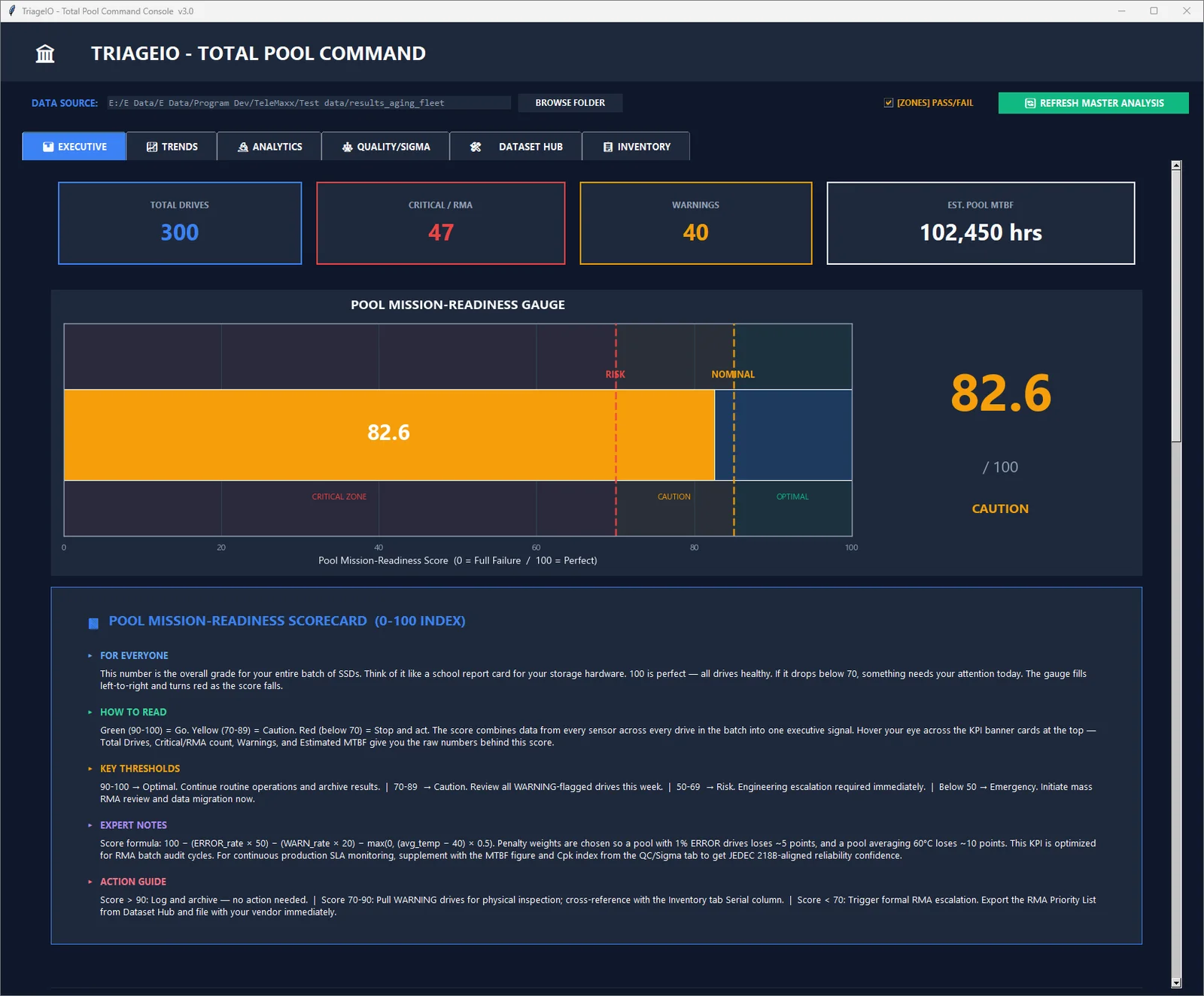
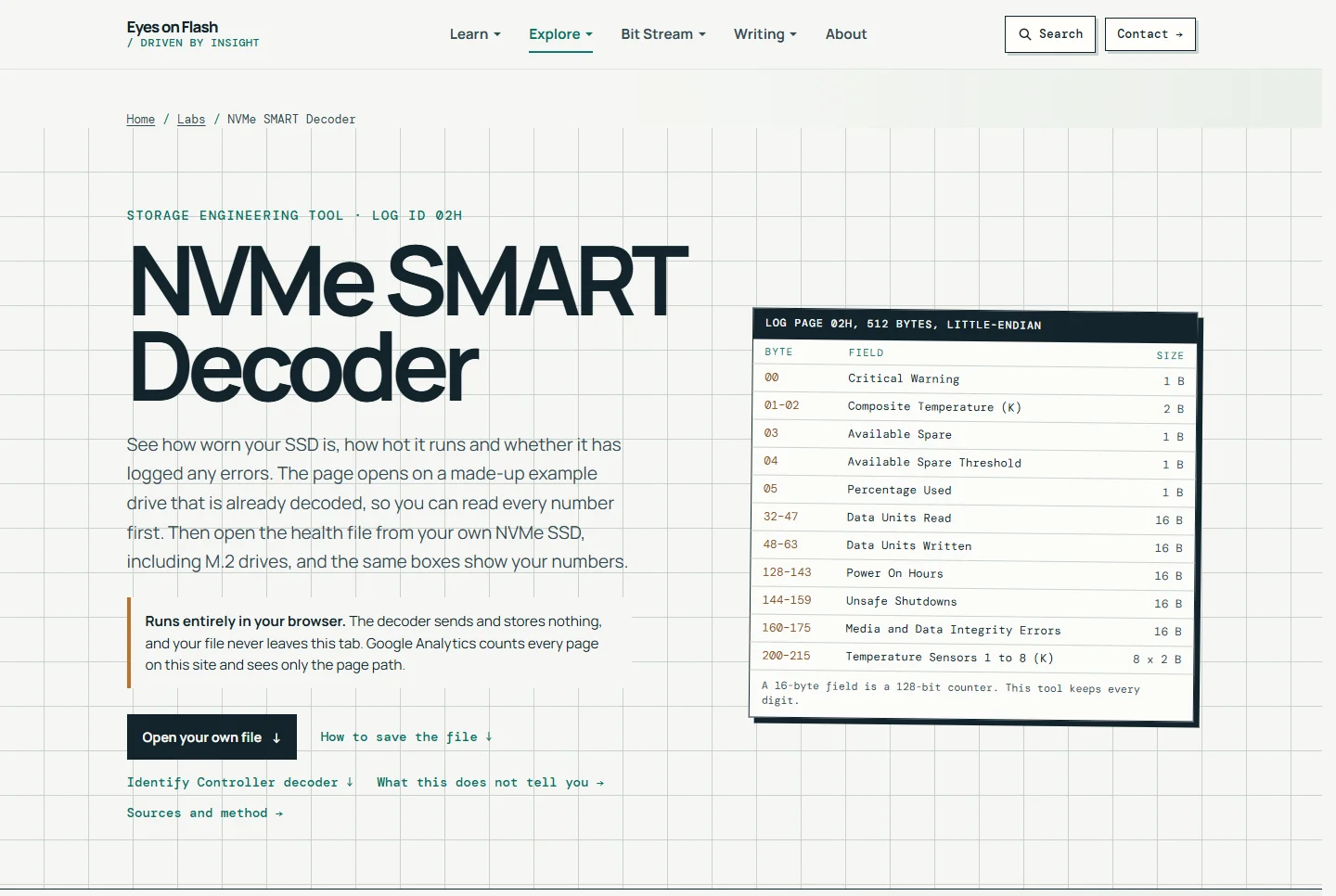
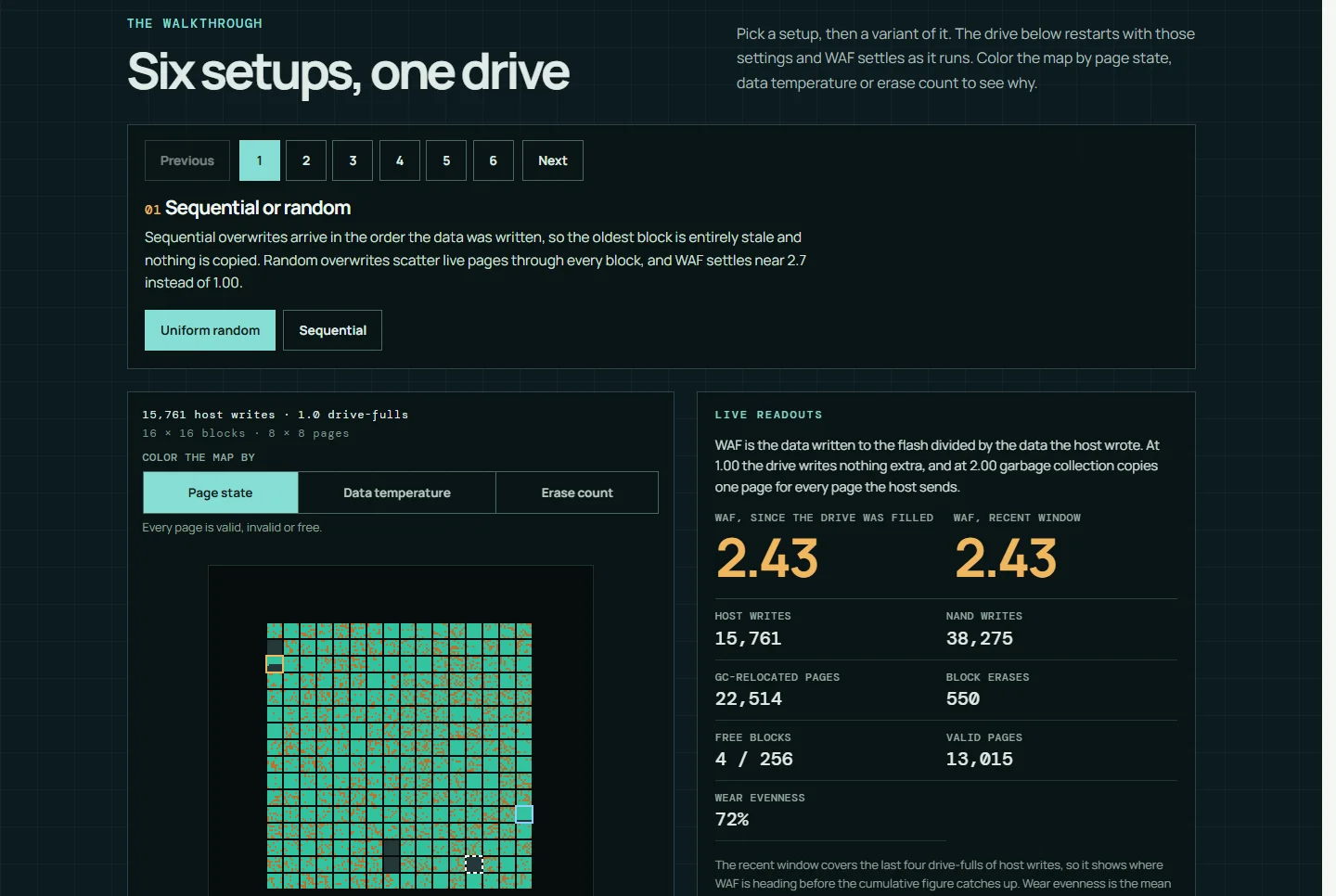
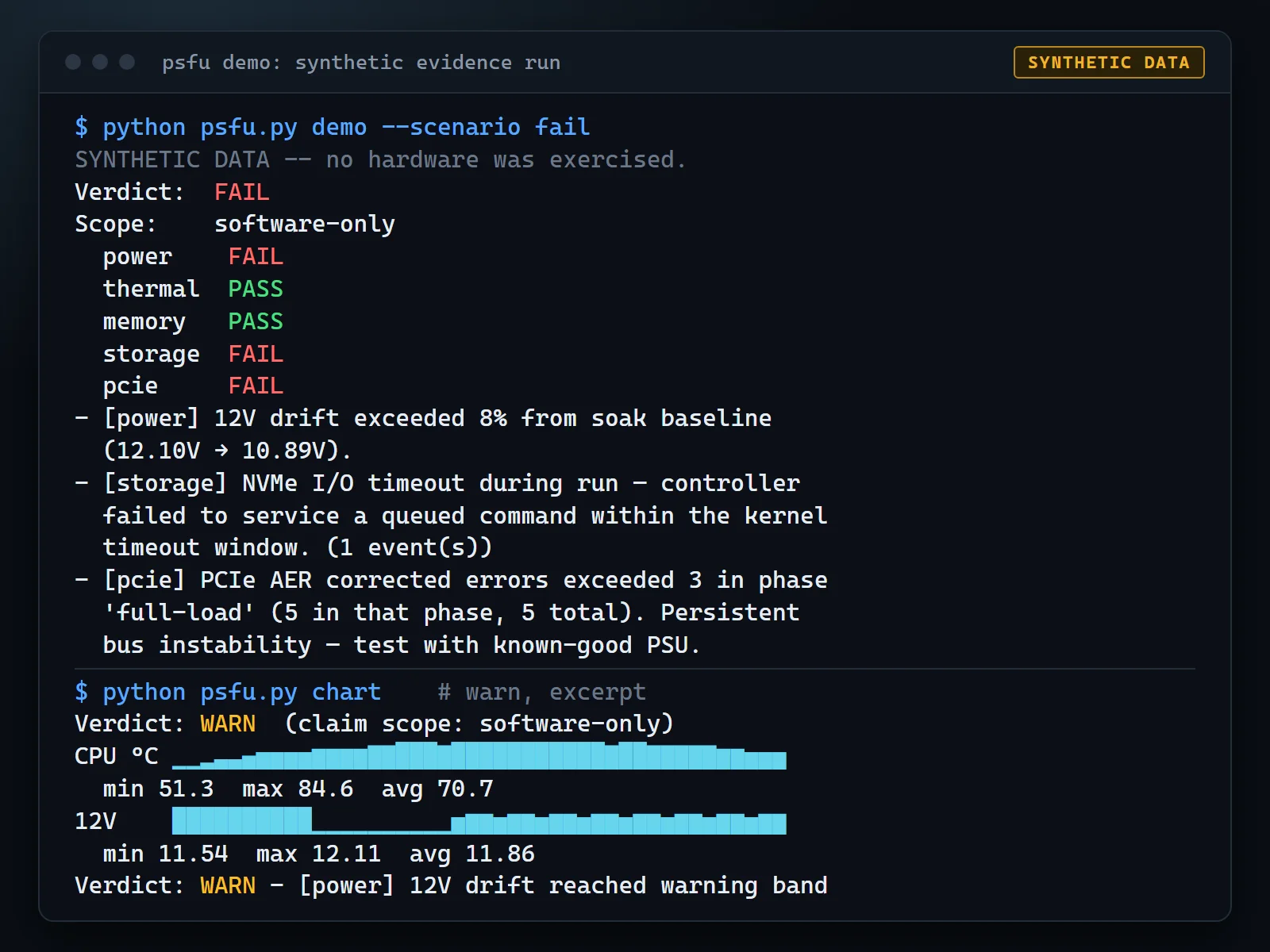
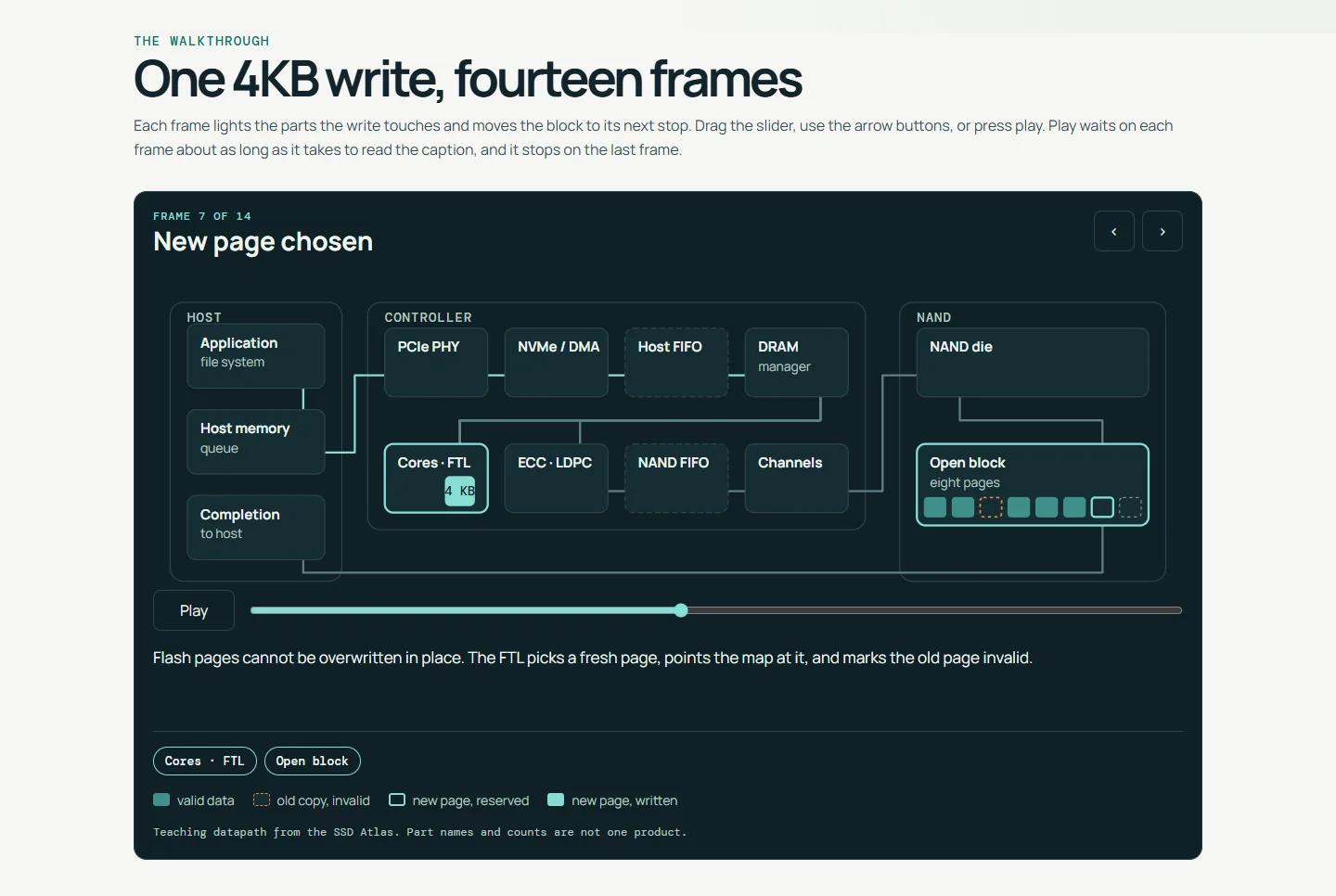
IOSpeX is a Windows utility for the moment an NVMe drive says it logged errors and then will not show them. It reads identify data, SMART health, log pages and feature values through two interchangeable paths, Windows ioctl and smartctl, so a missing error log can be traced to the parser or to the driver stack. It is one of the software tools on this site, and the Flash Foundations guide sends you here when it reaches the error and health logs, Part 5 among them. Paste the counters into the NVMe SMART Decoder to read them, and save a workbook to feed TriageIO.
Introducing IOSpeX
On Windows, SMART can report a non-zero error count. Then the error log itself comes back empty, with no entries and no hint of what happened.
IOSpeX is built around that problem. Run on a Windows machine, it reads NVMe identify data, SMART health, log pages and feature values through two interchangeable paths. That lets you tell whether a missing payload is a parser problem or a driver-visibility problem.
What it is
IOSpeX is a Windows storage utility with a GUI for day-to-day work and a CLI for scripting. It wraps two query paths, Windows ioctl and smartctl, and lets you switch between them and compare what each returns.
IOSpeX targets NVMe. SATA drives are listed and can be queried through smartctl. Parsed summaries are NVMe-shaped, so SATA results are partial (see the limitations below).
The problem it solves
You pull SMART data and num_err_log_entries is non-zero, so the drive says something happened. You query log page 0x01 for the entries and parsed_entries is empty. The repository README lists this as a known behavior. Some Windows miniport stacks report the error count in SMART but return zeroed or empty payloads for the error log, and the firmware log (0x03) can do the same on one path while decoding fine on another.
Start by switching backends. What ioctl cannot surface, smartctl sometimes can, and the reverse. IOSpeX lets you run both against the same drive and compare. To read the SMART values it returns, paste them into the NVMe SMART Decoder, which turns the counters into plain numbers in your browser.
Two backends, one interface
ioctl backend
It sends IOCTL_STORAGE_QUERY_PROPERTY with ProtocolTypeNvme straight to the drive. This is the native Windows path for identify, SMART, log pages and feature reads. It is the one to use for raw-payload capture and for probing feature values, such as the Host Memory Buffer configuration at 0x0D.
smartctl backend
It runs smartmontools and reads its JSON output. Its device compatibility is broader, and it is a way around cases where the direct route is blocked by the driver stack, though it needs smartctl installed and findable.
Backend choice works like this:
defaultandautopickioctlfirst, andsmartctlonly ifioctlis not available.- CLI queries do not retry on the other backend when a query fails. You pick the backend and re-run.
- GUI queries retry with
smartctlautomatically when anioctlquery for identify, SMART, error log, firmware log or custom log fails, and labels the result “(fallback)”. - Feature reads are
ioctlonly.smartctldoes not implement them, and they never fall back.
CLI
# List detected physical drives
python -m IOSpeX --backend ioctl --list

# Identify, SMART, error log and firmware log in one JSON file
python -m IOSpeX --backend ioctl --device 0 --all --output out.json

# Pull the error log through both backends and compare
python -m IOSpeX --backend smartctl --device 0 --log 0x01 --output error_log_smartctl.json
python -m IOSpeX --backend ioctl --device 0 --log 0x01 --output error_log_ioctl.json

# Read a feature value (the Host Memory Buffer feature here)
python -m IOSpeX --backend ioctl --device 0 --feature 0x0D --feature-size 512 --output hmb_feature.json

# Read a vendor log page
python -m IOSpeX --backend ioctl --device 0 --log 0xC0 --output vu_log_0xC0.json
--smart and --identify run on their own, and --device is the PhysicalDrive number. --output writes JSON, CSV or a plain-text report depending on the file extension. A feature read returns the raw bytes as hex plus the first four bytes as a little-endian number.
GUI
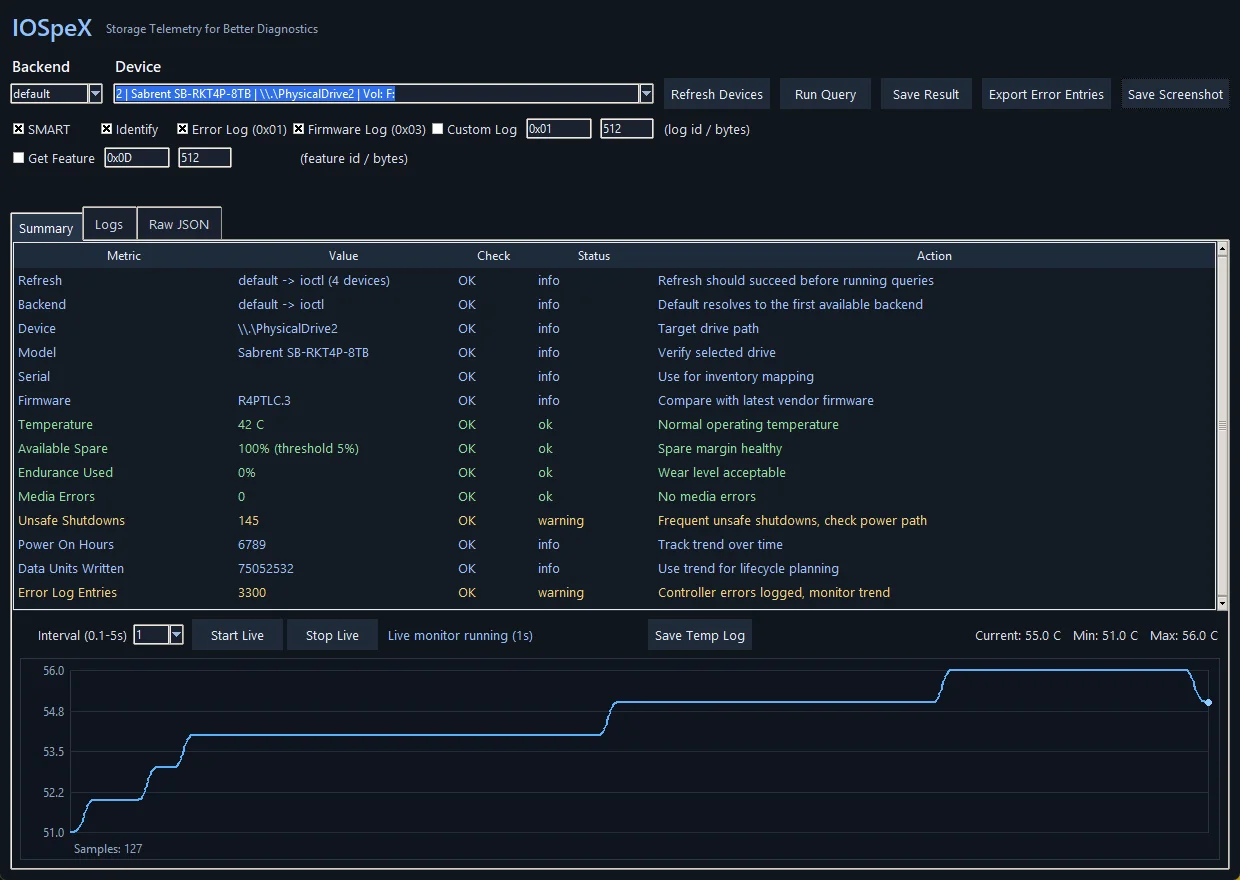
Start it with python -m IOSpeX --gui or by double-clicking IOSpeX.bat. Choose the backend and the drive. Then tick the reads to run: SMART, Identify, Error Log 0x01, Firmware Log 0x03, a custom log with an ID and byte size, or a feature read. Press Run Query and the results appear in three tabs.
Summary
Drive identity plus health checks with a status and a suggested action for each. Thresholds are fixed in the code, for example a temperature warning at 65°C or higher and critical at 75°C or higher. Endurance warns at 80% or more used and goes critical at 95% or more used.
Logs
Which sections succeeded, which backend produced them, and a hint when the pattern looks like driver blocking.
Raw JSON
Every section the query returned, as one JSON view.
A live temperature monitor polls SMART at an interval from 0.1s to 5s and graphs the last 900 points, with current, minimum and maximum. Changing the interval clears the history. If you switch drives while it is running, it saves the log and stops. Save Temp Log writes a per-second file. Readings inside the same second are averaged, and a second with no reading repeats the previous value, so the data is even by the time it reaches a spreadsheet.
Exports go to .xlsx (needs openpyxl), .json, .csv or .txt. Decoded error-log entries export separately to .csv or .json, which is useful for trending across runs, and Save Screenshot saves the window as a PNG (needs Pillow or pyautogui). In the workbook, the first sheet lists metrics as Metric and Value rows using the names TriageIO ingests, so a saved result from one drive can go straight into a TriageIO folder.
When drivers get in the way
Here is the README’s workflow for a drive that reports errors but returns an empty log:
- Run SMART and the error log together, and check whether
num_err_log_entriesis non-zero whileparsed_entriesis empty. - Run the same query through both backends and keep both outputs.
- If you are still stuck, try the Microsoft in-box storage driver for that controller and test again. Do this only on a non-production test system, with a restore point, and keep the original driver package so you can revert.
- For deeper tracing, capture StorPort ETW with the
Microsoft-Windows-StorPortprovider and0xFFFFFFFFflags, outside the app, to see the NVMe request flow at the driver level.
A driver change can improve how much of a log payload is visible and how well the two backends agree. It cannot turn SATA into NVMe.
Limitations
NVMe first
Log pages, feature reads and the parsed summaries are NVMe concepts, so for SATA drives the best path is smartctl, and the parsed fields may come back empty or unknown, although the raw JSON can still hold useful ATA data.
CLI custom log size is fixed
A --log read asks for 512 bytes and there is no --log-size flag yet. The GUI accepts a custom size but floors it at 512 bytes, so a smaller value is not used as typed. --all reads the error log at 4,096 bytes.
Custom logs through smartctl are best effort
For log pages other than 0x01 and 0x03, the smartctl path tries nvmelog and otherwise returns a full snapshot with a note that direct fetch may be unsupported by that build.
Feature reads are ioctl only
Run feature reads with --backend ioctl. Under smartctl there is nothing to fall back to.
Drive discovery probes PhysicalDrive0 to PhysicalDrive31
Discovery tries every number from PhysicalDrive0 to PhysicalDrive31. It does so whatever the drive’s protocol, so SATA drives show up in the list too.
The health thresholds are simple fixed rules
Health thresholds are simple fixed rules and are not vendor limits. Treat the Summary tab as a prompt to look closer.
No automated tests
The repository has no automated tests. Check anything you rely on against the other backend.
Get started
You need Windows and Python 3.10 or newer. Nothing third-party is required for the core. smartctl from smartmontools is recommended and is found on your PATH or in C:\Program Files\smartmontools\bin, and optional packages add .xlsx export and screenshots.
git clone https://github.com/TurboStorage/iospex.git
cd iospex
pip install -r requirements.txt   # optional: openpyxl, Pillow, pyautogui
python -m IOSpeX --gui            # or: python -m IOSpeX --help
You can also download the repository from GitHub as a ZIP instead of cloning it. Per the README, an elevated (Administrator) prompt gives the best device access, especially with ioctl. For an unavailable SMART result, the GUI’s own hint is to retry as Administrator or switch backend.
Safety
It is a read-only tool
ioctl sends only IOCTL_STORAGE_QUERY_PROPERTY queries for identify data, the SMART log, log pages and feature values. It does not issue IOCTL_STORAGE_PROTOCOL_COMMAND, and it has no format, erase, firmware or write path, and it makes no network connections. The smartctl backend runs only information and log queries. The GUI also runs a read-only PowerShell CIM query to match drives to volume letters.
It still opens the raw drive
ioctl asks Windows for read and write access to \\.\PhysicalDriveN and falls back to a no-access handle if that is refused. The only thing sent through it is the query above, but treat any tool that opens a raw drive with care on a system you care about.
It writes only what you save
Saves go to a results folder in the current directory by default, and the temperature log auto-saved on a drive change goes there.
Exports include the drive’s model, serial number and firmware revision
Each saved file carries all three. Remove them before you share it with anyone.
License
IOSpeX is open source under the MIT License, copyright 2026 Sean Webster. The LICENSE file is in the GitHub repository.